Accessibility pattern · Communication
Inline edit
Each value is plain text with an Edit button named for it; pressing it swaps in a labelled field with Save and Cancel, and focus goes into the field. Enter saves and Escape cancels, and either way focus returns to the Edit button, with a polite status confirming what was saved.
- WCAG criteria
- 7
- Keyboard rules
- 5
- Checked with
- axe, keyboard and the inspector
Live demo
Try it
Use it with a mouse, a keyboard or a screen reader. The inspector beside it shows what the browser tells assistive technology as you go: focus, state changes and announcements.
Project settings
Kesar Tea · Monsoon range
- Project name
-
Monsoon launch
- Starts
- Due date
-
- Description
-
Landing page, emails and launch-day offers for the monsoon tea range.
The demo works without JavaScript only as far as its HTML does; the inspector needs JavaScript.
Keyboard
Keys it answers to
Every action works without a pointer.
| Key | What it does |
|---|---|
| Tab | Moves from one Edit button to the next; while a field is open, through the field, Save and Cancel. |
| Enter or Space | On an Edit button, swaps the value for a field and moves focus into it. |
| Enter | In the name or the date, saves and returns focus to the Edit button. In the description, starts a new line. |
| CtrlEnter | In the description, saves it. |
| Escape | Cancels: puts the old value back and returns focus to the Edit button. |
Screen readers
What it announces
Written from the roles, names and states in the markup.
| When | Expected announcement |
|---|---|
| Tab reaches an Edit button | Edit project name, button |
| Enter opens the field | Project name, edit text, Monsoon launch, selected |
| Enter saves a new name | Edit project name, button. Project name saved |
| Enter with the field empty | Enter a project name. |
| Escape cancels | Edit project name, button |
These are expected announcements, not recordings. Wording and order differ between screen readers and browsers.
Code
Copy the code
The exact files this demo runs on. The styles are served with a prefix that keeps this site's own styles out of the demo; what you copy is the original.
<section class="ap-inline-edit" data-ap-inline-edit aria-labelledby="ie-name">
  <div class="ap-inline-edit__top">
    <h3 class="ap-inline-edit__name" id="ie-name">Project settings</h3>
    <p class="ap-inline-edit__sub">Kesar Tea · Monsoon range</p>
  </div>
  <dl class="ap-inline-edit__list">
    <div class="ap-inline-edit__row" data-ap-ie-row="project">
      <dt class="ap-inline-edit__key" id="ie-project-k">Project name</dt>
      <dd class="ap-inline-edit__cell">
        <div class="ap-inline-edit__view">
          <p class="ap-inline-edit__value" data-ap-ie-value>Monsoon launch</p>
          <button type="button" class="ap-inline-edit__edit" data-ap-ie-edit aria-label="Edit project name"><svg viewBox="0 0 24 24" aria-hidden="true" focusable="false"><path d="M12 20h9"/><path d="M16.5 3.5a2.1 2.1 0 0 1 3 3L7 19l-4 1 1-4Z"/></svg><span>Edit</span></button>
        </div>
        <form class="ap-inline-edit__form" data-ap-ie-form novalidate hidden>
          <input class="ap-input" id="ie-project" aria-labelledby="ie-project-k" data-ap-ie-input name="project" value="Monsoon launch" autocomplete="off" />
          <p class="ap-error" id="ie-project-error" hidden><svg class="ap-inline-edit__icon" viewBox="0 0 24 24" aria-hidden="true" focusable="false"><circle cx="12" cy="12" r="9"/><path d="M12 7.5v5"/><path d="M12 16.5h.01"/></svg><span></span></p>
          <div class="ap-inline-edit__btns">
            <button type="submit" class="ap-btn ap-btn--primary">Save</button>
            <button type="button" class="ap-btn" data-ap-ie-cancel>Cancel</button>
          </div>
        </form>
      </dd>
    </div>
    <div class="ap-inline-edit__row ap-inline-edit__row--fixed">
      <dt class="ap-inline-edit__key">Starts</dt>
      <dd class="ap-inline-edit__cell"><p class="ap-inline-edit__value"><time datetime="2026-10-01">1 October 2026</time></p></dd>
    </div>
    <div class="ap-inline-edit__row" data-ap-ie-row="due">
      <dt class="ap-inline-edit__key" id="ie-due-k">Due date</dt>
      <dd class="ap-inline-edit__cell">
        <div class="ap-inline-edit__view">
          <p class="ap-inline-edit__value" data-ap-ie-value><time datetime="2026-11-14">14 November 2026</time></p>
          <button type="button" class="ap-inline-edit__edit" data-ap-ie-edit aria-label="Edit due date"><svg viewBox="0 0 24 24" aria-hidden="true" focusable="false"><path d="M12 20h9"/><path d="M16.5 3.5a2.1 2.1 0 0 1 3 3L7 19l-4 1 1-4Z"/></svg><span>Edit</span></button>
        </div>
        <form class="ap-inline-edit__form" data-ap-ie-form novalidate hidden>
          <input class="ap-input ap-inline-edit__date" id="ie-due" aria-labelledby="ie-due-k" data-ap-ie-input name="due" type="date" value="2026-11-14" min="2026-10-02" />
          <p class="ap-error" id="ie-due-error" hidden><svg class="ap-inline-edit__icon" viewBox="0 0 24 24" aria-hidden="true" focusable="false"><circle cx="12" cy="12" r="9"/><path d="M12 7.5v5"/><path d="M12 16.5h.01"/></svg><span></span></p>
          <div class="ap-inline-edit__btns">
            <button type="submit" class="ap-btn ap-btn--primary">Save</button>
            <button type="button" class="ap-btn" data-ap-ie-cancel>Cancel</button>
          </div>
        </form>
      </dd>
    </div>
    <div class="ap-inline-edit__row" data-ap-ie-row="desc">
      <dt class="ap-inline-edit__key" id="ie-desc-k">Description</dt>
      <dd class="ap-inline-edit__cell">
        <div class="ap-inline-edit__view">
          <p class="ap-inline-edit__value" data-ap-ie-value>Landing page, emails and launch-day offers for the monsoon tea range.</p>
          <button type="button" class="ap-inline-edit__edit" data-ap-ie-edit aria-label="Edit description"><svg viewBox="0 0 24 24" aria-hidden="true" focusable="false"><path d="M12 20h9"/><path d="M16.5 3.5a2.1 2.1 0 0 1 3 3L7 19l-4 1 1-4Z"/></svg><span>Edit</span></button>
        </div>
        <form class="ap-inline-edit__form" data-ap-ie-form novalidate hidden>
          <textarea class="ap-input" id="ie-desc" aria-labelledby="ie-desc-k" aria-describedby="ie-desc-hint" data-ap-ie-input name="desc" rows="3" aria-keyshortcuts="Control+Enter">Landing page, emails and launch-day offers for the monsoon tea range.</textarea>
          <p class="ap-hint" id="ie-desc-hint">Ctrl + Enter saves. Up to 200 characters.</p>
          <p class="ap-error" id="ie-desc-error" hidden><svg class="ap-inline-edit__icon" viewBox="0 0 24 24" aria-hidden="true" focusable="false"><circle cx="12" cy="12" r="9"/><path d="M12 7.5v5"/><path d="M12 16.5h.01"/></svg><span></span></p>
          <div class="ap-inline-edit__btns">
            <button type="submit" class="ap-btn ap-btn--primary">Save</button>
            <button type="button" class="ap-btn" data-ap-ie-cancel>Cancel</button>
          </div>
        </form>
      </dd>
    </div>
  </dl>
  <div class="ap-inline-edit__foot" data-ap-ie-foot hidden>
    <button type="button" class="ap-btn ap-btn--primary" data-ap-ie-saveall>Save changes</button>
  </div>
  <p class="ap-inline-edit__status" role="status"></p>
  <p class="ap-inline-edit__vh" aria-live="polite" data-ap-ie-say></p>
</section>
/* Shared primitives: buttons and form fields used across the patterns.
   Uses the --ap-* design tokens. */

.ap-btn {
  display: inline-flex;
  align-items: center;
  justify-content: center;
  gap: 8px;
  min-height: 40px;
  padding: 0 16px;
  border: 1px solid var(--ap-border-strong);
  border-radius: var(--ap-radius-sm);
  background: var(--ap-surface);
  color: var(--ap-text);
  font: inherit;
  font-weight: 600;
  line-height: 1.2;
  text-decoration: none;
  white-space: nowrap;
  cursor: pointer;
  transition: background-color var(--ap-duration) var(--ap-ease), border-color var(--ap-duration) var(--ap-ease), box-shadow var(--ap-duration) var(--ap-ease);
}
.ap-btn:hover {
  background: var(--ap-surface-2);
}
.ap-btn:focus-visible {
  outline: 2px solid var(--ap-focus);
  outline-offset: 2px;
}
.ap-btn:disabled,
.ap-btn[aria-disabled="true"] {
  opacity: .55;
  cursor: not-allowed;
}
.ap-btn--primary {
  border-color: var(--ap-accent);
  background: var(--ap-accent);
  color: var(--ap-on-accent);
  box-shadow: var(--ap-shadow-sm);
}
.ap-btn--primary:hover {
  border-color: var(--ap-accent-hover);
  background: var(--ap-accent-hover);
}
.ap-btn--danger {
  border-color: var(--ap-danger);
  background: var(--ap-danger);
  color: var(--ap-surface);
}
.ap-btn--danger:hover {
  filter: brightness(1.08);
}
.ap-btn--ghost {
  border-color: transparent;
  background: transparent;
}
.ap-btn--ghost:hover {
  background: var(--ap-surface-2);
}
.ap-btn__icon {
  width: 18px;
  height: 18px;
  flex-shrink: 0;
  fill: none;
  stroke: currentColor;
  stroke-width: 2;
  stroke-linecap: round;
  stroke-linejoin: round;
}

.ap-field {
  display: grid;
  gap: 6px;
}
.ap-label {
  color: var(--ap-text);
  font-weight: 600;
  font-size: .9375rem;
}
.ap-hint {
  margin: 0;
  color: var(--ap-text-3);
  font-size: .875rem;
  line-height: 1.45;
}
.ap-error {
  display: flex;
  align-items: flex-start;
  gap: 6px;
  margin: 0;
  color: var(--ap-danger);
  font-size: .875rem;
  font-weight: 600;
  line-height: 1.45;
}
.ap-input {
  width: 100%;
  min-height: 44px;
  padding: 10px 12px;
  border: 1px solid var(--ap-border-strong);
  border-radius: var(--ap-radius-sm);
  background: var(--ap-surface);
  color: var(--ap-text);
  font: inherit;
  line-height: 1.4;
  transition: border-color var(--ap-duration) var(--ap-ease), box-shadow var(--ap-duration) var(--ap-ease);
}
.ap-input::placeholder {
  color: var(--ap-text-3);
}
.ap-input:hover {
  border-color: var(--ap-text-2);
}
.ap-input:focus-visible {
  outline: 2px solid var(--ap-focus);
  outline-offset: 1px;
  border-color: var(--ap-focus);
}
.ap-input[aria-invalid="true"] {
  border-color: var(--ap-danger);
  box-shadow: inset 4px 0 0 var(--ap-danger);
}
textarea.ap-input {
  resize: vertical;
  min-height: 88px;
}

@media (prefers-reduced-motion: reduce) {
  .ap-btn,
  .ap-input { transition: none; }
}

/* Inline edit. Uses the --ap-* design tokens and the shared primitives. */
.ap-inline-edit {
  width: min(100%, 580px);
  margin-inline: auto;
  padding: 22px 24px 12px;
  border: 1px solid var(--ap-border);
  border-radius: var(--ap-radius-lg);
  background: var(--ap-surface);
  color: var(--ap-text);
  box-shadow: var(--ap-shadow-md);
  container-type: inline-size;
}
.ap-inline-edit [hidden] {
  display: none !important;
}
.ap-inline-edit__name {
  margin: 0;
  font-size: 1.125rem;
  font-weight: 650;
  line-height: 1.3;
}
.ap-inline-edit__sub {
  margin: 2px 0 0;
  color: var(--ap-text-3);
  font-size: .875rem;
}

/* Label and value side by side; stacked when narrow */
.ap-inline-edit__list {
  margin: 14px 0 0;
}
.ap-inline-edit__row {
  position: relative;
  display: grid;
  grid-template-columns: 132px minmax(0, 1fr);
  align-items: start;
  gap: 4px 16px;
  margin: 0 -10px;
  padding: 12px 10px;
  border-radius: var(--ap-radius-sm);
}
.ap-inline-edit__row::before {
  content: "";
  position: absolute;
  top: 0;
  right: 10px;
  left: 10px;
  height: 1px;
  background: var(--ap-border);
}
.ap-inline-edit__row.is-saved {
  animation: ap-inline-edit-saved 1.4s var(--ap-ease);
}
.ap-inline-edit__key {
  padding-top: 9px;
  color: var(--ap-text-3);
  font-size: .875rem;
  font-weight: 600;
}
.ap-inline-edit__cell {
  min-width: 0;
  margin: 0;
}
.ap-inline-edit__view {
  display: flex;
  align-items: flex-start;
  justify-content: space-between;
  gap: 12px;
}
.ap-inline-edit__value {
  min-width: 0;
  margin: 0;
  padding: 7px 0;
  color: var(--ap-text);
  font-weight: 500;
  line-height: 1.5;
  white-space: pre-line;
  overflow-wrap: anywhere;
}
.ap-inline-edit__value[data-empty] {
  color: var(--ap-text-3);
  font-style: italic;
  font-weight: 400;
}
.ap-inline-edit__row--fixed .ap-inline-edit__value {
  color: var(--ap-text-2);
}
.ap-inline-edit__edit {
  display: inline-flex;
  align-items: center;
  flex-shrink: 0;
  gap: 6px;
  min-height: 36px;
  padding: 0 10px;
  border: 1px solid transparent;
  border-radius: var(--ap-radius-sm);
  background: transparent;
  color: var(--ap-accent-text);
  font: inherit;
  font-size: .875rem;
  font-weight: 600;
  cursor: pointer;
}
.ap-inline-edit__edit:hover {
  border-color: var(--ap-border);
  background: var(--ap-surface-2);
}
.ap-inline-edit__edit:focus-visible {
  outline: 2px solid var(--ap-focus);
  outline-offset: 1px;
}
.ap-inline-edit__edit svg {
  width: 16px;
  height: 16px;
  fill: none;
  stroke: currentColor;
  stroke-width: 2;
  stroke-linecap: round;
  stroke-linejoin: round;
}

/* The field that replaces the value */
.ap-inline-edit__form {
  display: grid;
  gap: 6px;
  animation: ap-inline-edit-in 160ms var(--ap-ease);
}
.ap-inline-edit__form textarea.ap-input {
  min-height: 84px;
}
.ap-inline-edit__date {
  max-width: 220px;
}
.ap-inline-edit__btns {
  display: flex;
  flex-wrap: wrap;
  gap: 8px;
  margin-top: 4px;
}
.ap-inline-edit__icon {
  flex-shrink: 0;
  width: 18px;
  height: 18px;
  margin-top: 1px;
  fill: none;
  stroke: currentColor;
  stroke-width: 2;
  stroke-linecap: round;
}

/* Always editable: one Save changes for the lot */
.ap-inline-edit[data-always] .ap-inline-edit__btns {
  display: none;
}
.ap-inline-edit[data-always] .ap-inline-edit__form {
  animation: none;
}
.ap-inline-edit__foot {
  display: flex;
  justify-content: flex-end;
  padding-top: 14px;
  border-top: 1px solid var(--ap-border);
}

.ap-inline-edit__status {
  display: flex;
  align-items: center;
  gap: 8px;
  min-height: 1.5em;
  margin: 4px 0 0;
  color: var(--ap-success);
  font-size: .875rem;
  font-weight: 600;
}
.ap-inline-edit__status:not(:empty)::before {
  content: "";
  width: 10px;
  height: 5px;
  margin-top: -3px;
  border-bottom: 2px solid currentColor;
  border-left: 2px solid currentColor;
  transform: rotate(-45deg);
}
.ap-inline-edit__vh {
  position: absolute;
  width: 1px;
  height: 1px;
  margin: -1px;
  padding: 0;
  overflow: hidden;
  clip-path: inset(50%);
  white-space: nowrap;
}

@keyframes ap-inline-edit-in {
  from { opacity: 0; transform: translateY(-3px); }
}
@keyframes ap-inline-edit-saved {
  0%, 35% { background: var(--ap-success-soft); }
}

@container (max-width: 440px) {
  .ap-inline-edit { padding: 18px 16px 14px; }
  .ap-inline-edit__row { grid-template-columns: minmax(0, 1fr); }
  .ap-inline-edit__key { padding-top: 0; margin-bottom: -4px; }
  .ap-inline-edit__date { max-width: none; }
}

@media (prefers-reduced-motion: reduce) {
  .ap-inline-edit__form,
  .ap-inline-edit__row.is-saved { animation: none; }
}
/**
 * Inline edit: each value is text with an Edit button; the button swaps in
 * a labelled field with Save and Cancel. Enter (Ctrl+Enter in a text area)
 * saves, Escape cancels, and focus returns to the Edit button either way.
 *
 * Markup: [data-ap-inline-edit] holding a dl of rows [data-ap-ie-row=<key>],
 * each with a value p[data-ap-ie-value], an Edit button[data-ap-ie-edit] and
 * a hidden form[data-ap-ie-form] (field [data-ap-ie-input], .ap-error, Save
 * and Cancel), a hidden Save changes footer, a role=status and a polite
 * region [data-ap-ie-say]. Add data-always to the root to show every value
 * as a field with one Save changes button instead.
 */

const START = "2026-10-01"; // the project's start date; the due date must come after it
const SAVED = { project: "Project name saved", due: "Due date saved", desc: "Description saved" };

export function init(root) {
  const ac = new AbortController();
  const on = (target, type, fn) => target.addEventListener(type, fn, { signal: ac.signal });
  const rows = [...root.querySelectorAll("[data-ap-ie-row]")];
  const status = root.querySelector("[role=status]");
  const say = root.querySelector("[data-ap-ie-say]");
  const foot = root.querySelector("[data-ap-ie-foot]");
  const parts = (row) => ({
    key: row.dataset.apIeRow,
    view: row.querySelector(".ap-inline-edit__view"),
    value: row.querySelector("[data-ap-ie-value]"),
    edit: row.querySelector("[data-ap-ie-edit]"),
    form: row.querySelector("[data-ap-ie-form]"),
    input: row.querySelector("[data-ap-ie-input]"),
    error: row.querySelector(".ap-error"),
  });
  // What is saved, kept apart from the fields so Cancel can always restore it.
  const saved = new Map(rows.map((row) => [row, parts(row).input.value]));
  const always = () => root.hasAttribute("data-always");
  let flashTimer = 0;

  function tell(text) {
    status.textContent = "";
    requestAnimationFrame(() => { status.textContent = text; });
  }

  function speak(text) {
    say.textContent = "";
    requestAnimationFrame(() => { say.textContent = text; });
  }

  function dateText(iso) {
    const [y, m, d] = iso.split("-").map(Number);
    const locale = document.documentElement.lang.startsWith("hi") ? "hi-IN" : "en-GB";
    return new Intl.DateTimeFormat(locale, { day: "numeric", month: "long", year: "numeric" }).format(new Date(y, m - 1, d));
  }

  /* ── Checking a value: the message, or "" when it is fine ── */
  function problem(key, input) {
    const value = input.value.trim();
    if (key === "project") {
      if (!value) return "Enter a project name.";
      if (value.length > 60) return "Use 60 characters or fewer.";
    }
    if (key === "due") {
      if (input.validity.badInput) return "Enter a whole date, for example 14 November 2026.";
      if (!value) return "Enter a due date.";
      if (value <= START) return "Choose a date after the project starts, 1 October 2026.";
    }
    if (key === "desc" && [...value].length > 200) return "Use 200 characters or fewer.";
    return "";
  }

  function setError(row, message) {
    const { input, error } = parts(row);
    if (message) error.querySelector("span").textContent = message;
    error.hidden = !message;
    const ids = (input.getAttribute("aria-describedby") || "").split(/\s+/).filter((id) => id && id !== error.id);
    if (message) ids.push(error.id);
    if (ids.length) input.setAttribute("aria-describedby", ids.join(" "));
    else input.removeAttribute("aria-describedby");
    if (message) input.setAttribute("aria-invalid", "true");
    else input.removeAttribute("aria-invalid");
  }

  /* ── Showing a value as text ── */
  function paintValue(row) {
    const { key, value } = parts(row);
    const text = saved.get(row);
    value.toggleAttribute("data-empty", !text);
    if (key === "due") {
      const time = document.createElement("time");
      time.dateTime = text;
      time.textContent = dateText(text);
      value.replaceChildren(time);
    } else {
      value.textContent = text || "No description yet";
    }
  }

  function flash(row) {
    row.classList.remove("is-saved");
    clearTimeout(flashTimer);
    requestAnimationFrame(() => {
      row.classList.add("is-saved");
      flashTimer = setTimeout(() => row.classList.remove("is-saved"), 1400);
    });
  }

  /* ── Click to edit ── */
  function open(row) {
    const { view, form, input } = parts(row);
    view.hidden = true;
    form.hidden = false;
    input.focus();
    if (input.tagName === "TEXTAREA") input.setSelectionRange(input.value.length, input.value.length);
    else if (input.type !== "date") input.select();
  }

  function close(row, returnFocus) {
    const { view, form, edit } = parts(row);
    form.hidden = true;
    view.hidden = false;
    if (returnFocus) edit.focus();
  }

  function cancel(row) {
    parts(row).input.value = saved.get(row);
    setError(row, "");
    close(row, true);
  }

  /** Checks a row; shows and returns its message if there is a problem. */
  function check(row) {
    const { key, input } = parts(row);
    const message = problem(key, input);
    setError(row, message);
    return message;
  }

  function saveRow(row) {
    const { key, input } = parts(row);
    const message = check(row);
    if (message) {
      // Focus already in the field rereads nothing: say the message instead.
      if (document.activeElement === input) speak(message);
      else input.focus();
      return;
    }
    const next = input.value.trim();
    const changed = next !== saved.get(row);
    saved.set(row, next);
    input.value = next;
    paintValue(row);
    close(row, true);
    if (changed) {
      tell(SAVED[key]);
      flash(row);
    }
  }

  /* ── Always editable: every value a field, one Save changes ── */
  function saveAll() {
    const bad = rows.filter((row) => check(row));
    if (bad.length) {
      const first = parts(bad[0]);
      if (document.activeElement === first.input) speak(first.error.textContent.trim());
      else first.input.focus();
      return;
    }
    let changed = false;
    for (const row of rows) {
      const { input } = parts(row);
      const next = input.value.trim();
      if (next !== saved.get(row)) changed = true;
      saved.set(row, next);
      input.value = next;
      paintValue(row);
    }
    if (changed) tell("Settings saved");
  }

  function setMode() {
    const on = always();
    for (const row of rows) {
      const { view, form } = parts(row);
      view.hidden = on;
      form.hidden = !on;
    }
    foot.hidden = !on;
  }

  /* ── Wiring ── */
  const rowOf = (el) => el.closest("[data-ap-ie-row]");

  function onClick(event) {
    const edit = event.target.closest("[data-ap-ie-edit]");
    if (edit) return open(rowOf(edit));
    const cancelButton = event.target.closest("[data-ap-ie-cancel]");
    if (cancelButton) return cancel(rowOf(cancelButton));
    if (event.target.closest("[data-ap-ie-saveall]")) return saveAll();
    return undefined;
  }

  function onSubmit(event) {
    event.preventDefault();
    if (always()) saveAll();
    else saveRow(rowOf(event.target));
  }

  function onKeydown(event) {
    const row = rowOf(event.target);
    if (!row || !parts(row).form.contains(event.target)) return;
    if (event.key === "Escape" && !always()) {
      event.preventDefault();
      cancel(row);
    } else if (event.key === "Enter" && (event.ctrlKey || event.metaKey) && event.target.tagName === "TEXTAREA") {
      event.preventDefault();
      parts(row).form.requestSubmit();
    }
  }

  // An error goes as soon as the value is fit to save.
  function onInput(event) {
    const row = rowOf(event.target);
    if (row && parts(row).input.getAttribute("aria-invalid") === "true" && !problem(parts(row).key, parts(row).input)) setError(row, "");
  }

  on(root, "click", onClick);
  on(root, "submit", onSubmit);
  on(root, "keydown", onKeydown);
  on(root, "input", onInput);
  setMode();

  return () => {
    clearTimeout(flashTimer);
    ac.abort();
  };
}

for (const root of document.querySelectorAll("[data-ap-inline-edit]")) init(root);
/* Design tokens for the pattern components. Light by default, dark when the
   system asks for it; set data-theme="dark" on :root to force dark. */
:root {
    --ap-radius-sm: 8px;
    --ap-radius: 12px;
    --ap-radius-lg: 16px;
    --ap-radius-full: 999px;
    --ap-font: "Instrument Sans", ui-sans-serif, system-ui, -apple-system, "Segoe UI", Roboto, sans-serif;
    --ap-mono: "JetBrains Mono", ui-monospace, "Cascadia Mono", "SF Mono", Consolas, monospace;
    --ap-ease: cubic-bezier(.2, .8, .2, 1);
    --ap-duration: 180ms;
    --ap-target: 44px;
    --ap-bg: #F4F4F5;
    --ap-surface: #FFFFFF;
    --ap-surface-2: #F4F4F5;
    --ap-surface-3: #E4E4E7;
    --ap-border: #E4E4E7;
    --ap-border-strong: #76767F;
    --ap-text: #18181B;
    --ap-text-2: #3F3F46;
    --ap-text-3: #5E5E66;
    --ap-accent: #4F46E5;
    --ap-accent-hover: #4338CA;
    --ap-on-accent: #FFFFFF;
    --ap-accent-text: #4338CA;
    --ap-accent-soft: #EEF2FF;
    --ap-accent-soft-text: #3730A3;
    --ap-focus: #4F46E5;
    --ap-danger: #B91C1C;
    --ap-danger-soft: #FEF2F2;
    --ap-success: #15803D;
    --ap-success-soft: #F0FDF4;
    --ap-warning: #A15C07;
    --ap-warning-soft: #FEFCE8;
    --ap-info: #1D4ED8;
    --ap-info-soft: #EFF6FF;
    --ap-scrim: rgb(9 9 11 / .48);
    --ap-shadow-sm: 0 1px 2px rgb(9 9 11 / .06);
    --ap-shadow-md: 0 1px 2px rgb(9 9 11 / .05), 0 6px 16px -4px rgb(9 9 11 / .1);
    --ap-shadow-lg: 0 2px 6px rgb(9 9 11 / .06), 0 20px 40px -12px rgb(9 9 11 / .22);
    --ap-light-bg: #F4F4F5;
    --ap-light-surface: #FFFFFF;
    --ap-light-surface-2: #F4F4F5;
    --ap-light-surface-3: #E4E4E7;
    --ap-light-border: #E4E4E7;
    --ap-light-border-strong: #76767F;
    --ap-light-text: #18181B;
    --ap-light-text-2: #3F3F46;
    --ap-light-text-3: #5E5E66;
    --ap-light-accent: #4F46E5;
    --ap-light-accent-hover: #4338CA;
    --ap-light-on-accent: #FFFFFF;
    --ap-light-accent-text: #4338CA;
    --ap-light-accent-soft: #EEF2FF;
    --ap-light-accent-soft-text: #3730A3;
    --ap-light-focus: #4F46E5;
    --ap-light-danger: #B91C1C;
    --ap-light-danger-soft: #FEF2F2;
    --ap-light-success: #15803D;
    --ap-light-success-soft: #F0FDF4;
    --ap-light-warning: #A15C07;
    --ap-light-warning-soft: #FEFCE8;
    --ap-light-info: #1D4ED8;
    --ap-light-info-soft: #EFF6FF;
    --ap-light-scrim: rgb(9 9 11 / .48);
    --ap-light-shadow-sm: 0 1px 2px rgb(9 9 11 / .06);
    --ap-light-shadow-md: 0 1px 2px rgb(9 9 11 / .05), 0 6px 16px -4px rgb(9 9 11 / .1);
    --ap-light-shadow-lg: 0 2px 6px rgb(9 9 11 / .06), 0 20px 40px -12px rgb(9 9 11 / .22);
    --ap-dark-bg: #09090B;
    --ap-dark-surface: #18181B;
    --ap-dark-surface-2: #27272A;
    --ap-dark-surface-3: #3F3F46;
    --ap-dark-border: #2E2E33;
    --ap-dark-border-strong: #8E8E97;
    --ap-dark-text: #FAFAFA;
    --ap-dark-text-2: #D4D4D8;
    --ap-dark-text-3: #A1A1AA;
    --ap-dark-accent: #818CF8;
    --ap-dark-accent-hover: #A5B4FC;
    --ap-dark-on-accent: #0C0A1F;
    --ap-dark-accent-text: #A5B4FC;
    --ap-dark-accent-soft: #1E1B4B;
    --ap-dark-accent-soft-text: #C7D2FE;
    --ap-dark-focus: #A5B4FC;
    --ap-dark-danger: #F87171;
    --ap-dark-danger-soft: #2A1215;
    --ap-dark-success: #4ADE80;
    --ap-dark-success-soft: #0F2A1A;
    --ap-dark-warning: #FACC15;
    --ap-dark-warning-soft: #2A2410;
    --ap-dark-info: #60A5FA;
    --ap-dark-info-soft: #0F1D33;
    --ap-dark-scrim: rgb(0 0 0 / .62);
    --ap-dark-shadow-sm: 0 1px 2px rgb(0 0 0 / .4);
    --ap-dark-shadow-md: 0 1px 2px rgb(0 0 0 / .4), 0 8px 20px -6px rgb(0 0 0 / .5);
    --ap-dark-shadow-lg: 0 2px 8px rgb(0 0 0 / .45), 0 24px 48px -12px rgb(0 0 0 / .7);
}
@media (prefers-color-scheme: dark) {
  :root:not([data-theme="light"]) {
      --ap-bg: #09090B;
      --ap-surface: #18181B;
      --ap-surface-2: #27272A;
      --ap-surface-3: #3F3F46;
      --ap-border: #2E2E33;
      --ap-border-strong: #8E8E97;
      --ap-text: #FAFAFA;
      --ap-text-2: #D4D4D8;
      --ap-text-3: #A1A1AA;
      --ap-accent: #818CF8;
      --ap-accent-hover: #A5B4FC;
      --ap-on-accent: #0C0A1F;
      --ap-accent-text: #A5B4FC;
      --ap-accent-soft: #1E1B4B;
      --ap-accent-soft-text: #C7D2FE;
      --ap-focus: #A5B4FC;
      --ap-danger: #F87171;
      --ap-danger-soft: #2A1215;
      --ap-success: #4ADE80;
      --ap-success-soft: #0F2A1A;
      --ap-warning: #FACC15;
      --ap-warning-soft: #2A2410;
      --ap-info: #60A5FA;
      --ap-info-soft: #0F1D33;
      --ap-scrim: rgb(0 0 0 / .62);
      --ap-shadow-sm: 0 1px 2px rgb(0 0 0 / .4);
      --ap-shadow-md: 0 1px 2px rgb(0 0 0 / .4), 0 8px 20px -6px rgb(0 0 0 / .5);
      --ap-shadow-lg: 0 2px 8px rgb(0 0 0 / .45), 0 24px 48px -12px rgb(0 0 0 / .7);
  }
}
:root[data-theme="dark"] {
    --ap-bg: #09090B;
    --ap-surface: #18181B;
    --ap-surface-2: #27272A;
    --ap-surface-3: #3F3F46;
    --ap-border: #2E2E33;
    --ap-border-strong: #8E8E97;
    --ap-text: #FAFAFA;
    --ap-text-2: #D4D4D8;
    --ap-text-3: #A1A1AA;
    --ap-accent: #818CF8;
    --ap-accent-hover: #A5B4FC;
    --ap-on-accent: #0C0A1F;
    --ap-accent-text: #A5B4FC;
    --ap-accent-soft: #1E1B4B;
    --ap-accent-soft-text: #C7D2FE;
    --ap-focus: #A5B4FC;
    --ap-danger: #F87171;
    --ap-danger-soft: #2A1215;
    --ap-success: #4ADE80;
    --ap-success-soft: #0F2A1A;
    --ap-warning: #FACC15;
    --ap-warning-soft: #2A2410;
    --ap-info: #60A5FA;
    --ap-info-soft: #0F1D33;
    --ap-scrim: rgb(0 0 0 / .62);
    --ap-shadow-sm: 0 1px 2px rgb(0 0 0 / .4);
    --ap-shadow-md: 0 1px 2px rgb(0 0 0 / .4), 0 8px 20px -6px rgb(0 0 0 / .5);
    --ap-shadow-lg: 0 2px 8px rgb(0 0 0 / .45), 0 24px 48px -12px rgb(0 0 0 / .7);
}
WCAG 2.2
What it meets
The success criteria this pattern takes care of, and how.
-
1.3.1 Info and Relationships
Level A
Each value and its label are a term and description in a list; the field takes its name from the same label with aria-labelledby.
-
2.1.1 Keyboard
Level A
Editing starts from a real button, and saving and cancelling both have keys as well as buttons.
-
2.4.3 Focus Order
Level A
Opening a field moves focus into it; saving or cancelling puts it back on the Edit button it came from.
-
2.5.3 Label in Name
Level A
Each Edit button's name starts with the word it shows, Edit, and says which value it edits.
-
3.3.1 Error Identification
Level A
An empty name or an impossible date is not saved; the error is shown under the field, tied to it and announced.
-
4.1.2 Name, Role, Value
Level A
Values are read as text, not as fields pretending to be text; the field appears with its real role only while editing.
-
4.1.3 Status Messages
Level AA
A polite status says what was saved, without moving focus.
Usage
When to use it
Use it
- Settings and records people mostly read and occasionally change, one value at a time.
- Dense pages where a full form for every value would be noise.
Use something else
- Forms people fill in from scratch: show every field as a field, as the Always editable option does.
- Values that must change together, like an address: edit them in one form with one Save.
- Values people change often: an always-visible field saves a click every time.
Common failures
How it usually goes wrong
A contenteditable span that looks like text
It has no role, no label and no visible edge, so screen readers announce plain text, keyboard users never know they can type, and there is no Save, Cancel or error. A real button and a real field fix all of that.
Click on the text itself to edit
A clickable span or a div is not in the Tab order and is announced as text. The Edit button here is a button, named for the value it edits.
Saving on blur
Saving as focus leaves means a stray Tab commits half-typed text, and Escape has nothing to undo. Here only Enter or Save saves.
Focus lost when the field closes
If the field disappears with focus in it, keyboard users are sent to the top of the page. Focus returns to the Edit button every time.
Edit buttons that all say Edit
Three buttons called Edit cannot be told apart in a list of buttons. Each one here is named Edit project name, Edit due date and so on.
An error nobody hears
Turning the border red on a field that already has focus says nothing to a screen reader. The message is tied to the field and also announced.
Notes
Building it
- The field takes its name from the dt with aria-labelledby, so the visible label and the accessible name are always the same words.
- Keep the saved value in script, not in the field, so Cancel can put it back after any number of edits.
- The Always editable option shows the same values as ordinary fields with one Save changes button; compare the two by keyboard to see the cost of each.
- Enter adds a line in the description, which is why it saves with Ctrl+Enter and says so in its hint.
Sources: WAI-ARIA Authoring Practices: Button · MDN: the contenteditable attribute
Checked with axe in light and dark themes, at desktop and phone widths, and by keyboard. Not yet tested with every screen reader and browser pair. Report a correction
Related
Patterns that go with it
-
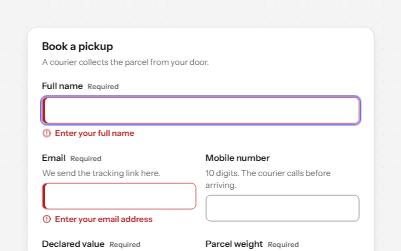
Text field
Text fields with visible labels, hints and errors tied to the input, the right keyboard and autofill, and units you can hear.
-
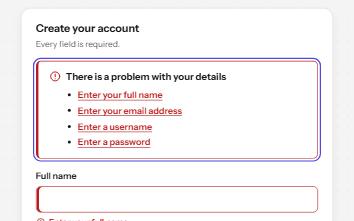
Inline validation
A sign-up form that checks each field as it is left, once typed in, with ticks and errors in words and a summary on submit.
-
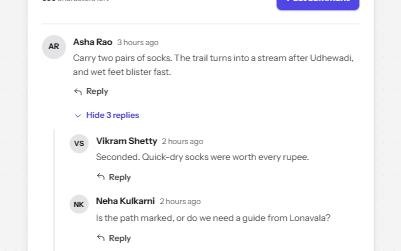
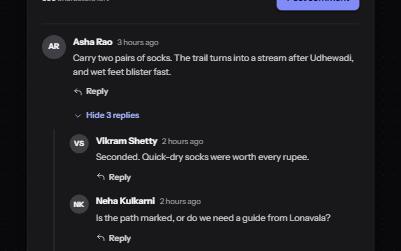
Comment thread
A threaded discussion with replies that open in place, collapsible threads, and edit or delete for your own comments.
-
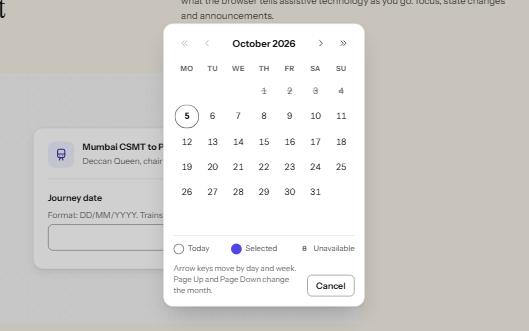
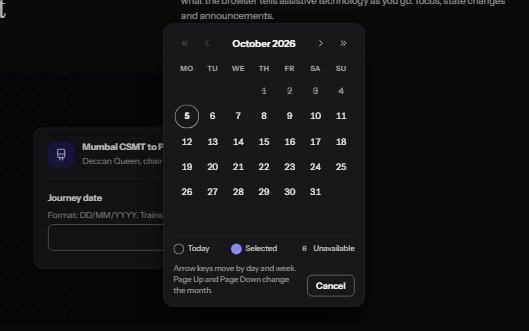
Date picker
A date field that takes a typed date or opens a calendar dialog, with a month grid driven by the arrow keys.