Accessibility pattern · Buttons and actions
Copy to clipboard
Each button keeps one name, such as Copy API key, while its face turns to a tick and Copied for two seconds. A polite status says Copied to clipboard; if the browser blocks the clipboard, the text is selected and a message says how to copy it by hand.
- WCAG criteria
- 6
- Keyboard rules
- 3
- Checked with
- axe, keyboard and the inspector
Live demo
Try it
Use it with a mouse, a keyboard or a screen reader. The inspector beside it shows what the browser tells assistive technology as you go: focus, state changes and announcements.
The demo works without JavaScript only as far as its HTML does; the inspector needs JavaScript.
Keyboard
Keys it answers to
Every action works without a pointer.
| Key | What it does |
|---|---|
| Tab | Moves through the read-only fields and their Copy buttons in reading order. |
| Enter or Space | On a Copy button, copies its text; the button shows Copied for two seconds and the result is announced. |
| CtrlC or ⌘C | Copies by hand. After a blocked copy the text is already selected, so this is the only step left. |
Screen readers
What it announces
Written from the roles, names and states in the markup.
| When | Expected announcement |
|---|---|
| Focus reaches the API key's button | Copy API key, button |
| The copy works | Copied to clipboard |
| The clipboard is blocked | Couldn't copy automatically. The text is selected: press Ctrl+C, or ⌘C on a Mac. |
| Focus reaches the API key field | API key, edit text, read only, ak_live_7Hq2Ns9Vx4Lm8Pz3Rt6Wb1Ky. Keep it secret: anyone with this key can send reports to your account. |
These are expected announcements, not recordings. Wording and order differ between screen readers and browsers.
Code
Copy the code
The exact files this demo runs on. The styles are served with a prefix that keeps this site's own styles out of the demo; what you copy is the original.
<div class="ap-copy-button" data-ap-copy-button>
  <div class="ap-copy-button__top">
    <h3 class="ap-copy-button__label">Connect the checker</h3>
    <p class="ap-copy-button__lead">Install the package, then paste your key into its settings.</p>
  </div>

  <div class="ap-copy-button__item">
    <p class="ap-label">Install command</p>
    <div class="ap-copy-button__code">
      <pre class="ap-copy-button__pre"><code id="copy-button-cmd">npm install --save-dev axe-core</code></pre>
      <button type="button" class="ap-copy-button__btn" data-ap-source="copy-button-cmd" aria-label="Copy install command">
        <svg class="ap-copy-button__icon ap-copy-button__icon--copy" viewBox="0 0 24 24" aria-hidden="true" focusable="false"><rect x="9" y="9" width="11" height="11" rx="2"/><path d="M5 15V5a2 2 0 0 1 2-2h10"/></svg>
        <svg class="ap-copy-button__icon ap-copy-button__icon--done" viewBox="0 0 24 24" aria-hidden="true" focusable="false"><path d="m5 12.5 4.5 4.5L19 7.5"/></svg>
        <span class="ap-copy-button__word">Copy</span>
      </button>
    </div>
    <p class="ap-copy-button__fail" hidden>Couldn't copy automatically. The text is selected: press Ctrl+C, or ⌘C on a Mac.</p>
  </div>

  <div class="ap-copy-button__item">
    <label class="ap-label" for="copy-button-key">API key</label>
    <div class="ap-copy-button__group">
      <input class="ap-input ap-copy-button__value" id="copy-button-key" type="text" value="ak_live_7Hq2Ns9Vx4Lm8Pz3Rt6Wb1Ky" readonly aria-describedby="copy-button-key-hint" />
      <button type="button" class="ap-copy-button__btn" data-ap-source="copy-button-key" aria-label="Copy API key">
        <svg class="ap-copy-button__icon ap-copy-button__icon--copy" viewBox="0 0 24 24" aria-hidden="true" focusable="false"><rect x="9" y="9" width="11" height="11" rx="2"/><path d="M5 15V5a2 2 0 0 1 2-2h10"/></svg>
        <svg class="ap-copy-button__icon ap-copy-button__icon--done" viewBox="0 0 24 24" aria-hidden="true" focusable="false"><path d="m5 12.5 4.5 4.5L19 7.5"/></svg>
        <span class="ap-copy-button__word">Copy</span>
      </button>
    </div>
    <p class="ap-hint" id="copy-button-key-hint">Keep it secret: anyone with this key can send reports to your account.</p>
    <p class="ap-copy-button__fail" hidden>Couldn't copy automatically. The text is selected: press Ctrl+C, or ⌘C on a Mac.</p>
  </div>

  <div class="ap-copy-button__item">
    <label class="ap-label" for="copy-button-link">Share link</label>
    <div class="ap-copy-button__group">
      <input class="ap-input ap-copy-button__value" id="copy-button-link" type="text" value="https://auricartisan.com/r/q4-audit" readonly />
      <button type="button" class="ap-copy-button__btn" data-ap-source="copy-button-link" aria-label="Copy share link">
        <svg class="ap-copy-button__icon ap-copy-button__icon--copy" viewBox="0 0 24 24" aria-hidden="true" focusable="false"><rect x="9" y="9" width="11" height="11" rx="2"/><path d="M5 15V5a2 2 0 0 1 2-2h10"/></svg>
        <svg class="ap-copy-button__icon ap-copy-button__icon--done" viewBox="0 0 24 24" aria-hidden="true" focusable="false"><path d="m5 12.5 4.5 4.5L19 7.5"/></svg>
        <span class="ap-copy-button__word">Copy</span>
      </button>
    </div>
    <p class="ap-copy-button__fail" hidden>Couldn't copy automatically. The text is selected: press Ctrl+C, or ⌘C on a Mac.</p>
  </div>

  <p class="ap-copy-button__say" role="status"></p>
</div>
/* Shared primitives: buttons and form fields used across the patterns.
   Uses the --ap-* design tokens. */

.ap-btn {
  display: inline-flex;
  align-items: center;
  justify-content: center;
  gap: 8px;
  min-height: 40px;
  padding: 0 16px;
  border: 1px solid var(--ap-border-strong);
  border-radius: var(--ap-radius-sm);
  background: var(--ap-surface);
  color: var(--ap-text);
  font: inherit;
  font-weight: 600;
  line-height: 1.2;
  text-decoration: none;
  white-space: nowrap;
  cursor: pointer;
  transition: background-color var(--ap-duration) var(--ap-ease), border-color var(--ap-duration) var(--ap-ease), box-shadow var(--ap-duration) var(--ap-ease);
}
.ap-btn:hover {
  background: var(--ap-surface-2);
}
.ap-btn:focus-visible {
  outline: 2px solid var(--ap-focus);
  outline-offset: 2px;
}
.ap-btn:disabled,
.ap-btn[aria-disabled="true"] {
  opacity: .55;
  cursor: not-allowed;
}
.ap-btn--primary {
  border-color: var(--ap-accent);
  background: var(--ap-accent);
  color: var(--ap-on-accent);
  box-shadow: var(--ap-shadow-sm);
}
.ap-btn--primary:hover {
  border-color: var(--ap-accent-hover);
  background: var(--ap-accent-hover);
}
.ap-btn--danger {
  border-color: var(--ap-danger);
  background: var(--ap-danger);
  color: var(--ap-surface);
}
.ap-btn--danger:hover {
  filter: brightness(1.08);
}
.ap-btn--ghost {
  border-color: transparent;
  background: transparent;
}
.ap-btn--ghost:hover {
  background: var(--ap-surface-2);
}
.ap-btn__icon {
  width: 18px;
  height: 18px;
  flex-shrink: 0;
  fill: none;
  stroke: currentColor;
  stroke-width: 2;
  stroke-linecap: round;
  stroke-linejoin: round;
}

.ap-field {
  display: grid;
  gap: 6px;
}
.ap-label {
  color: var(--ap-text);
  font-weight: 600;
  font-size: .9375rem;
}
.ap-hint {
  margin: 0;
  color: var(--ap-text-3);
  font-size: .875rem;
  line-height: 1.45;
}
.ap-error {
  display: flex;
  align-items: flex-start;
  gap: 6px;
  margin: 0;
  color: var(--ap-danger);
  font-size: .875rem;
  font-weight: 600;
  line-height: 1.45;
}
.ap-input {
  width: 100%;
  min-height: 44px;
  padding: 10px 12px;
  border: 1px solid var(--ap-border-strong);
  border-radius: var(--ap-radius-sm);
  background: var(--ap-surface);
  color: var(--ap-text);
  font: inherit;
  line-height: 1.4;
  transition: border-color var(--ap-duration) var(--ap-ease), box-shadow var(--ap-duration) var(--ap-ease);
}
.ap-input::placeholder {
  color: var(--ap-text-3);
}
.ap-input:hover {
  border-color: var(--ap-text-2);
}
.ap-input:focus-visible {
  outline: 2px solid var(--ap-focus);
  outline-offset: 1px;
  border-color: var(--ap-focus);
}
.ap-input[aria-invalid="true"] {
  border-color: var(--ap-danger);
  box-shadow: inset 4px 0 0 var(--ap-danger);
}
textarea.ap-input {
  resize: vertical;
  min-height: 88px;
}

@media (prefers-reduced-motion: reduce) {
  .ap-btn,
  .ap-input { transition: none; }
}

/* Copy to clipboard. Uses the --ap-* design tokens and the shared primitives. */
.ap-copy-button {
  display: grid;
  gap: 18px;
  width: min(100%, 520px);
  margin-inline: auto;
  padding: 20px 22px 22px;
  border: 1px solid var(--ap-border);
  border-radius: var(--ap-radius-lg);
  background: var(--ap-surface);
  color: var(--ap-text);
  box-shadow: var(--ap-shadow-md);
  container-type: inline-size;
}
.ap-copy-button__label {
  margin: 0;
  font-size: 1rem;
  font-weight: 650;
  line-height: 1.35;
}
.ap-copy-button__lead {
  margin: 4px 0 0;
  color: var(--ap-text-3);
  font-size: .875rem;
  line-height: 1.5;
}
.ap-copy-button__item {
  display: grid;
  gap: 6px;
}
.ap-copy-button__item .ap-label {
  margin: 0;
}

/* The code snippet */
.ap-copy-button__code {
  display: flex;
  align-items: flex-start;
  gap: 8px;
  padding: 5px 5px 5px 14px;
  border: 1px solid var(--ap-border);
  border-radius: var(--ap-radius-sm);
  background: var(--ap-surface-2);
}
.ap-copy-button__pre {
  flex: 1;
  min-width: 0;
  margin: 0;
  padding: 8px 0;
  color: var(--ap-text);
  font-family: var(--ap-mono);
  font-size: .875rem;
  line-height: 1.5;
  white-space: pre-wrap;
  overflow-wrap: anywhere;
}
.ap-copy-button__pre code {
  font: inherit;
}

/* A read-only value with its button */
.ap-copy-button__group {
  display: flex;
  gap: 8px;
}
.ap-copy-button__value {
  flex: 1;
  min-width: 0;
  font-family: var(--ap-mono);
  font-size: .875rem;
}
.ap-copy-button__value[readonly] {
  background: var(--ap-surface-2);
}

/* The button */
.ap-copy-button__btn {
  display: inline-flex;
  flex-shrink: 0;
  align-items: center;
  justify-content: center;
  gap: 6px;
  min-width: 96px;
  min-height: 44px;
  padding: 0 12px;
  border: 1px solid var(--ap-border-strong);
  border-radius: var(--ap-radius-sm);
  background: var(--ap-surface);
  color: var(--ap-text);
  font: inherit;
  font-size: .875rem;
  font-weight: 600;
  white-space: nowrap;
  cursor: pointer;
  transition: background-color var(--ap-duration) var(--ap-ease), border-color var(--ap-duration) var(--ap-ease), color var(--ap-duration) var(--ap-ease);
}
.ap-copy-button__code .ap-copy-button__btn {
  min-height: 36px;
}
.ap-copy-button__btn:hover {
  background: var(--ap-surface-2);
}
.ap-copy-button__btn:focus-visible {
  outline: 2px solid var(--ap-focus);
  outline-offset: 2px;
}
.ap-copy-button__icon {
  flex-shrink: 0;
  width: 17px;
  height: 17px;
  fill: none;
  stroke: currentColor;
  stroke-width: 2;
  stroke-linecap: round;
  stroke-linejoin: round;
}
.ap-copy-button__icon--done {
  display: none;
  stroke-width: 2.5;
}
.ap-copy-button__btn[data-copied] {
  border-color: var(--ap-success);
  background: var(--ap-success-soft);
  color: var(--ap-success);
}
.ap-copy-button__btn[data-copied] .ap-copy-button__icon--copy {
  display: none;
}
.ap-copy-button__btn[data-copied] .ap-copy-button__icon--done {
  display: block;
  animation: ap-copy-button-pop 260ms var(--ap-ease);
}

/* Shown when the clipboard refuses */
.ap-copy-button__fail {
  margin: 2px 0 0;
  padding: 8px 12px;
  border-radius: var(--ap-radius-sm);
  background: var(--ap-warning-soft);
  box-shadow: inset 3px 0 0 var(--ap-warning);
  color: var(--ap-warning);
  font-size: .875rem;
  font-weight: 600;
  line-height: 1.45;
}

/* Read by screen readers, not shown */
.ap-copy-button__say {
  position: absolute;
  width: 1px;
  height: 1px;
  margin: -1px;
  padding: 0;
  overflow: hidden;
  clip-path: inset(50%);
  white-space: nowrap;
}

@container (max-width: 340px) {
  .ap-copy-button { padding: 16px; }
  .ap-copy-button__btn { min-width: 0; }
}

@keyframes ap-copy-button-pop {
  from { opacity: 0; transform: scale(.6); }
}

@media (prefers-reduced-motion: reduce) {
  .ap-copy-button__btn { transition: none; }
  .ap-copy-button__btn[data-copied] .ap-copy-button__icon--done { animation: none; }
}
/**
 * Copy to clipboard: a button that copies a value, shows a tick and Copied
 * for two seconds, and reports the result in a polite status. Its name (an
 * aria-label such as "Copy API key") never changes. If the clipboard refuses,
 * the value is selected and a message explains how to copy it by hand.
 *
 * Markup: [data-ap-copy-button] holding buttons with data-ap-source="<id>"
 * (an input's value or an element's text) and a .ap-copy-button__word span,
 * each followed in its item by a hidden p.ap-copy-button__fail, plus one
 * p[role=status]. Add data-blocked to the root to act as if the clipboard
 * were blocked.
 */

const COPIED_FOR = 2000;

export function init(root) {
  const say = root.querySelector("[role=status]");
  const timers = new Map();
  let sayTimer = 0;

  // Empty first, then fill: the same message twice is still announced twice.
  function announce(text) {
    clearTimeout(sayTimer);
    say.textContent = "";
    sayTimer = setTimeout(() => { say.textContent = text; }, 60);
  }

  function showCopied(button) {
    const word = button.querySelector(".ap-copy-button__word");
    button.setAttribute("data-copied", "");
    word.textContent = "Copied";
    clearTimeout(timers.get(button));
    timers.set(button, setTimeout(() => {
      button.removeAttribute("data-copied");
      word.textContent = "Copy";
    }, COPIED_FOR));
  }

  // Select the value, ready for Ctrl+C. A field's text can only be selected
  // while it has focus; other text is selected where it is.
  function selectByHand(source) {
    if (source instanceof HTMLInputElement) {
      source.focus();
      source.select();
      return;
    }
    const range = document.createRange();
    range.selectNodeContents(source);
    const selection = window.getSelection();
    selection.removeAllRanges();
    selection.addRange(range);
  }

  async function copy(button) {
    const source = document.getElementById(button.dataset.apSource);
    const fail = button.closest(".ap-copy-button__item").querySelector(".ap-copy-button__fail");
    const text = source instanceof HTMLInputElement ? source.value : source.textContent;
    let ok = false;
    if (!root.hasAttribute("data-blocked") && navigator.clipboard?.writeText) {
      try {
        await navigator.clipboard.writeText(text);
        ok = true;
      } catch {
        // Insecure page, a frame without permission, or the person said no.
      }
    }
    if (ok) {
      fail.hidden = true;
      showCopied(button);
      announce("Copied to clipboard");
    } else {
      fail.hidden = false;
      selectByHand(source);
      announce("Couldn't copy automatically. The text is selected: press Ctrl+C, or ⌘C on a Mac.");
    }
  }

  function onClick(event) {
    const button = event.target.closest("[data-ap-source]");
    if (button && root.contains(button)) copy(button);
  }

  root.addEventListener("click", onClick);
  return () => {
    root.removeEventListener("click", onClick);
    clearTimeout(sayTimer);
    for (const t of timers.values()) clearTimeout(t);
  };
}

for (const root of document.querySelectorAll("[data-ap-copy-button]")) init(root);
/* Design tokens for the pattern components. Light by default, dark when the
   system asks for it; set data-theme="dark" on :root to force dark. */
:root {
    --ap-radius-sm: 8px;
    --ap-radius: 12px;
    --ap-radius-lg: 16px;
    --ap-radius-full: 999px;
    --ap-font: "Instrument Sans", ui-sans-serif, system-ui, -apple-system, "Segoe UI", Roboto, sans-serif;
    --ap-mono: "JetBrains Mono", ui-monospace, "Cascadia Mono", "SF Mono", Consolas, monospace;
    --ap-ease: cubic-bezier(.2, .8, .2, 1);
    --ap-duration: 180ms;
    --ap-target: 44px;
    --ap-bg: #F4F4F5;
    --ap-surface: #FFFFFF;
    --ap-surface-2: #F4F4F5;
    --ap-surface-3: #E4E4E7;
    --ap-border: #E4E4E7;
    --ap-border-strong: #76767F;
    --ap-text: #18181B;
    --ap-text-2: #3F3F46;
    --ap-text-3: #5E5E66;
    --ap-accent: #4F46E5;
    --ap-accent-hover: #4338CA;
    --ap-on-accent: #FFFFFF;
    --ap-accent-text: #4338CA;
    --ap-accent-soft: #EEF2FF;
    --ap-accent-soft-text: #3730A3;
    --ap-focus: #4F46E5;
    --ap-danger: #B91C1C;
    --ap-danger-soft: #FEF2F2;
    --ap-success: #15803D;
    --ap-success-soft: #F0FDF4;
    --ap-warning: #A15C07;
    --ap-warning-soft: #FEFCE8;
    --ap-info: #1D4ED8;
    --ap-info-soft: #EFF6FF;
    --ap-scrim: rgb(9 9 11 / .48);
    --ap-shadow-sm: 0 1px 2px rgb(9 9 11 / .06);
    --ap-shadow-md: 0 1px 2px rgb(9 9 11 / .05), 0 6px 16px -4px rgb(9 9 11 / .1);
    --ap-shadow-lg: 0 2px 6px rgb(9 9 11 / .06), 0 20px 40px -12px rgb(9 9 11 / .22);
    --ap-light-bg: #F4F4F5;
    --ap-light-surface: #FFFFFF;
    --ap-light-surface-2: #F4F4F5;
    --ap-light-surface-3: #E4E4E7;
    --ap-light-border: #E4E4E7;
    --ap-light-border-strong: #76767F;
    --ap-light-text: #18181B;
    --ap-light-text-2: #3F3F46;
    --ap-light-text-3: #5E5E66;
    --ap-light-accent: #4F46E5;
    --ap-light-accent-hover: #4338CA;
    --ap-light-on-accent: #FFFFFF;
    --ap-light-accent-text: #4338CA;
    --ap-light-accent-soft: #EEF2FF;
    --ap-light-accent-soft-text: #3730A3;
    --ap-light-focus: #4F46E5;
    --ap-light-danger: #B91C1C;
    --ap-light-danger-soft: #FEF2F2;
    --ap-light-success: #15803D;
    --ap-light-success-soft: #F0FDF4;
    --ap-light-warning: #A15C07;
    --ap-light-warning-soft: #FEFCE8;
    --ap-light-info: #1D4ED8;
    --ap-light-info-soft: #EFF6FF;
    --ap-light-scrim: rgb(9 9 11 / .48);
    --ap-light-shadow-sm: 0 1px 2px rgb(9 9 11 / .06);
    --ap-light-shadow-md: 0 1px 2px rgb(9 9 11 / .05), 0 6px 16px -4px rgb(9 9 11 / .1);
    --ap-light-shadow-lg: 0 2px 6px rgb(9 9 11 / .06), 0 20px 40px -12px rgb(9 9 11 / .22);
    --ap-dark-bg: #09090B;
    --ap-dark-surface: #18181B;
    --ap-dark-surface-2: #27272A;
    --ap-dark-surface-3: #3F3F46;
    --ap-dark-border: #2E2E33;
    --ap-dark-border-strong: #8E8E97;
    --ap-dark-text: #FAFAFA;
    --ap-dark-text-2: #D4D4D8;
    --ap-dark-text-3: #A1A1AA;
    --ap-dark-accent: #818CF8;
    --ap-dark-accent-hover: #A5B4FC;
    --ap-dark-on-accent: #0C0A1F;
    --ap-dark-accent-text: #A5B4FC;
    --ap-dark-accent-soft: #1E1B4B;
    --ap-dark-accent-soft-text: #C7D2FE;
    --ap-dark-focus: #A5B4FC;
    --ap-dark-danger: #F87171;
    --ap-dark-danger-soft: #2A1215;
    --ap-dark-success: #4ADE80;
    --ap-dark-success-soft: #0F2A1A;
    --ap-dark-warning: #FACC15;
    --ap-dark-warning-soft: #2A2410;
    --ap-dark-info: #60A5FA;
    --ap-dark-info-soft: #0F1D33;
    --ap-dark-scrim: rgb(0 0 0 / .62);
    --ap-dark-shadow-sm: 0 1px 2px rgb(0 0 0 / .4);
    --ap-dark-shadow-md: 0 1px 2px rgb(0 0 0 / .4), 0 8px 20px -6px rgb(0 0 0 / .5);
    --ap-dark-shadow-lg: 0 2px 8px rgb(0 0 0 / .45), 0 24px 48px -12px rgb(0 0 0 / .7);
}
@media (prefers-color-scheme: dark) {
  :root:not([data-theme="light"]) {
      --ap-bg: #09090B;
      --ap-surface: #18181B;
      --ap-surface-2: #27272A;
      --ap-surface-3: #3F3F46;
      --ap-border: #2E2E33;
      --ap-border-strong: #8E8E97;
      --ap-text: #FAFAFA;
      --ap-text-2: #D4D4D8;
      --ap-text-3: #A1A1AA;
      --ap-accent: #818CF8;
      --ap-accent-hover: #A5B4FC;
      --ap-on-accent: #0C0A1F;
      --ap-accent-text: #A5B4FC;
      --ap-accent-soft: #1E1B4B;
      --ap-accent-soft-text: #C7D2FE;
      --ap-focus: #A5B4FC;
      --ap-danger: #F87171;
      --ap-danger-soft: #2A1215;
      --ap-success: #4ADE80;
      --ap-success-soft: #0F2A1A;
      --ap-warning: #FACC15;
      --ap-warning-soft: #2A2410;
      --ap-info: #60A5FA;
      --ap-info-soft: #0F1D33;
      --ap-scrim: rgb(0 0 0 / .62);
      --ap-shadow-sm: 0 1px 2px rgb(0 0 0 / .4);
      --ap-shadow-md: 0 1px 2px rgb(0 0 0 / .4), 0 8px 20px -6px rgb(0 0 0 / .5);
      --ap-shadow-lg: 0 2px 8px rgb(0 0 0 / .45), 0 24px 48px -12px rgb(0 0 0 / .7);
  }
}
:root[data-theme="dark"] {
    --ap-bg: #09090B;
    --ap-surface: #18181B;
    --ap-surface-2: #27272A;
    --ap-surface-3: #3F3F46;
    --ap-border: #2E2E33;
    --ap-border-strong: #8E8E97;
    --ap-text: #FAFAFA;
    --ap-text-2: #D4D4D8;
    --ap-text-3: #A1A1AA;
    --ap-accent: #818CF8;
    --ap-accent-hover: #A5B4FC;
    --ap-on-accent: #0C0A1F;
    --ap-accent-text: #A5B4FC;
    --ap-accent-soft: #1E1B4B;
    --ap-accent-soft-text: #C7D2FE;
    --ap-focus: #A5B4FC;
    --ap-danger: #F87171;
    --ap-danger-soft: #2A1215;
    --ap-success: #4ADE80;
    --ap-success-soft: #0F2A1A;
    --ap-warning: #FACC15;
    --ap-warning-soft: #2A2410;
    --ap-info: #60A5FA;
    --ap-info-soft: #0F1D33;
    --ap-scrim: rgb(0 0 0 / .62);
    --ap-shadow-sm: 0 1px 2px rgb(0 0 0 / .4);
    --ap-shadow-md: 0 1px 2px rgb(0 0 0 / .4), 0 8px 20px -6px rgb(0 0 0 / .5);
    --ap-shadow-lg: 0 2px 8px rgb(0 0 0 / .45), 0 24px 48px -12px rgb(0 0 0 / .7);
}
WCAG 2.2
What it meets
The success criteria this pattern takes care of, and how.
-
1.3.1 Info and Relationships
Level A
Every value has a visible label tied to it, and the key's warning is joined to its field with aria-describedby.
-
1.4.1 Use of Color
Level A
A copy is confirmed by a tick and the word Copied, not only by the button turning green.
-
2.1.1 Keyboard
Level A
Every copy works from the keyboard, and the read-only fields can be selected and copied by hand.
-
2.5.3 Label in Name
Level A
Each button's name starts with the word on it, Copy, so a voice user can say Copy API key.
-
4.1.2 Name, Role, Value
Level A
The name stays Copy API key while the face changes, so the button is always announced as the same control.
-
4.1.3 Status Messages
Level AA
Copied to clipboard and the fallback instructions come from a polite status, announced without moving focus.
Usage
When to use it
Use it
- Strings people paste somewhere else and easily mistype: commands, keys, tokens, links and codes.
- Long or random values that are hard to select exactly on a touch screen.
Use something else
- Short text that is just as easy to select, where a button only adds clutter.
- Copying without a clear request: never write to the clipboard on page load, on focus or on hover.
Common failures
How it usually goes wrong
Silent success
A copy that changes nothing on screen and says nothing leaves everyone guessing whether it worked. The button shows Copied and a status announces it.
Renaming the button to Copied
Changing the name of a focused button is announced unreliably, and voice users lose the name they were about to say. The name stays; the status speaks.
A page of buttons all called Copy
In a screen reader's list of buttons, Copy, Copy, Copy is no help. Each name says what it copies.
Failing quietly
The clipboard API is refused on insecure pages, in some frames and when permission is denied. Here the text is selected and a message says how to copy it.
Color as the only signal
Green alone is missed by many people. The tick and the word Copied carry the same news.
Notes
Building it
- navigator.clipboard.writeText() needs a secure context and a user action; call it straight from the click handler.
- document.execCommand("copy") is deprecated, so it is not used here; selecting the text and asking for Ctrl+C works everywhere.
- The status is emptied and filled again on every copy, so copying the same thing twice is announced twice.
- The aria-label starts with the visible word, Copy. While the face says Copied the name does not change, which is the point: the status reports the result.
- Turn on Block the clipboard above to see the fallback: the message appears under the value and its text is selected. A field also takes focus, because its text can only be selected while it has focus.
Sources: W3C: Clipboard API and events · Understanding WCAG 2.2: Status Messages
Checked with axe in light and dark themes, at desktop and phone widths, and by keyboard. Not yet tested with every screen reader and browser pair. Report a correction
Related
Patterns that go with it
-
Button
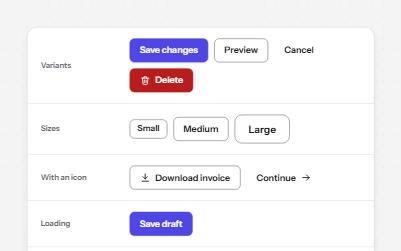
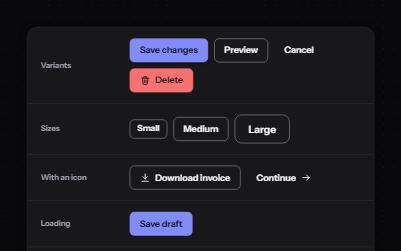
Native buttons in four variants and three sizes, with a loading state that keeps focus and a disabled state that says why.
-
Toast notifications
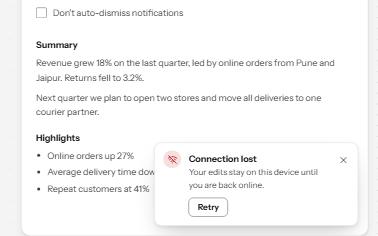
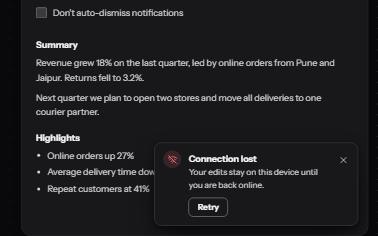
Short messages that appear in a corner, are announced politely, never take focus, and wait while you read or act on them.
-
Status message
Results, confirmations and saves told to screen readers through role=status, without moving focus, once each time.
-
Code block
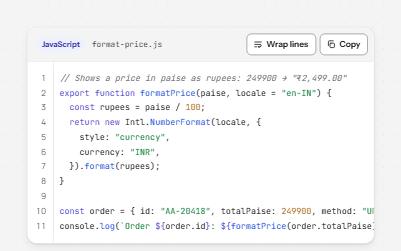
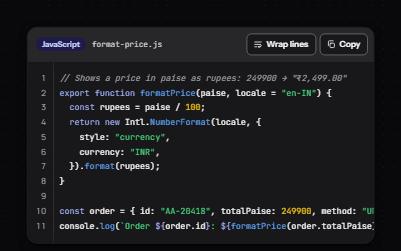
A code sample with its language, a Copy button, a Wrap lines switch and line numbers that are never read or copied.