Accessibility pattern · Form inputs
Search field
The search element makes a landmark people can jump to, and the field inside it has a visible label, a clear button and a real submit button. Submitting keeps focus in the field and says how many results there are in a status message, so people can refine the words or Tab on to the results.
- WCAG criteria
- 7
- Keyboard rules
- 4
- Checked with
- axe, keyboard and the inspector
Live demo
Try it
Use it with a mouse, a keyboard or a screen reader. The inspector beside it shows what the browser tells assistive technology as you go: focus, state changes and announcements.
Did you mean
Check the spelling, or try one of these:
The demo works without JavaScript only as far as its HTML does; the inspector needs JavaScript.
Keyboard
Keys it answers to
Every action works without a pointer.
| Key | What it does |
|---|---|
| Tab | Moves from the field to the clear button (when there is text), Search, the recent searches, and then the results. |
| Enter | In the field, searches; focus stays in the field and the count is announced. |
| Escape | In the field, clears it and shows the recent searches again. |
| Enter or Space | On a recent search or a suggestion, runs that search and puts focus back in the field. |
Screen readers
What it announces
Written from the roles, names and states in the markup.
| When | Expected announcement |
|---|---|
| Focus reaches the field | Search help articles, search, Search help articles, search edit text |
| Enter searches for contrast | 8 results for “contrast” |
| A search finds nothing | No results for “contast” |
| Tab reaches the first result | Contrast ratio, explained, link, list, 8 items |
| Recent searches are cleared | Recent searches cleared |
These are expected announcements, not recordings. Wording and order differ between screen readers and browsers.
Code
Copy the code
The exact files this demo runs on. The styles are served with a prefix that keeps this site's own styles out of the demo; what you copy is the original.
<div class="ap-search-field" data-ap-search-field>
  <search class="ap-search-field__search" aria-labelledby="search-field-label">
    <form class="ap-search-field__form" action="#search-field-count" data-ap-form>
      <label class="ap-label" id="search-field-label" for="search-field-q">Search help articles</label>
      <div class="ap-search-field__row">
        <div class="ap-search-field__box">
          <svg class="ap-search-field__glass" viewBox="0 0 24 24" aria-hidden="true" focusable="false"><circle cx="11" cy="11" r="7"/><path d="m20 20-3.5-3.5"/></svg>
          <input class="ap-search-field__input" id="search-field-q" type="search" name="q" autocomplete="off" spellcheck="false" enterkeyhint="search" />
          <button type="button" class="ap-search-field__clear" data-ap-erase aria-label="Clear search" hidden>
            <svg viewBox="0 0 24 24" aria-hidden="true" focusable="false"><path d="M6 6l12 12M18 6 6 18"/></svg>
          </button>
        </div>
        <button type="submit" class="ap-btn ap-btn--primary ap-search-field__go">Search</button>
      </div>
    </form>
  </search>

  <div class="ap-search-field__recent" data-ap-recent>
    <div class="ap-search-field__bar">
      <h3 class="ap-search-field__sub" id="search-field-recent">Recent searches</h3>
      <button type="button" class="ap-search-field__forget" data-ap-forget aria-label="Clear recent searches">Clear</button>
    </div>
    <ul class="ap-search-field__chips" aria-labelledby="search-field-recent" data-ap-recent-list>
        <li><button type="button" class="ap-search-field__chip" data-ap-term><svg viewBox="0 0 24 24" aria-hidden="true" focusable="false"><path d="M3 12a9 9 0 1 0 3-6.7L3 8"/><path d="M3 3v5h5"/><path d="M12 7v5l3 2"/></svg><span translate="no">contrast</span></button></li>
        <li><button type="button" class="ap-search-field__chip" data-ap-term><svg viewBox="0 0 24 24" aria-hidden="true" focusable="false"><path d="M3 12a9 9 0 1 0 3-6.7L3 8"/><path d="M3 3v5h5"/><path d="M12 7v5l3 2"/></svg><span translate="no">focus order</span></button></li>
        <li><button type="button" class="ap-search-field__chip" data-ap-term><svg viewBox="0 0 24 24" aria-hidden="true" focusable="false"><path d="M3 12a9 9 0 1 0 3-6.7L3 8"/><path d="M3 3v5h5"/><path d="M12 7v5l3 2"/></svg><span translate="no">alt text</span></button></li>
    </ul>
  </div>

  <p class="ap-search-field__count" id="search-field-count" role="status" data-ap-status></p>
  <ul class="ap-search-field__hits" aria-labelledby="search-field-count" data-ap-hits hidden></ul>
  <div class="ap-search-field__none" data-ap-none hidden>
    <p class="ap-search-field__fix" data-ap-fix hidden><span>Did you mean</span> <button type="button" class="ap-search-field__fix-btn" data-ap-term><span translate="no" data-ap-fix-term></span></button></p>
    <p class="ap-search-field__tip">Check the spelling, or try one of these:</p>
    <ul class="ap-search-field__chips" aria-label="Suggested searches">
        <li><button type="button" class="ap-search-field__chip" data-ap-term><svg class="ap-search-field__glass" viewBox="0 0 24 24" aria-hidden="true" focusable="false"><circle cx="11" cy="11" r="7"/><path d="m20 20-3.5-3.5"/></svg><span translate="no">contrast</span></button></li>
        <li><button type="button" class="ap-search-field__chip" data-ap-term><svg class="ap-search-field__glass" viewBox="0 0 24 24" aria-hidden="true" focusable="false"><circle cx="11" cy="11" r="7"/><path d="m20 20-3.5-3.5"/></svg><span translate="no">forms</span></button></li>
        <li><button type="button" class="ap-search-field__chip" data-ap-term><svg class="ap-search-field__glass" viewBox="0 0 24 24" aria-hidden="true" focusable="false"><circle cx="11" cy="11" r="7"/><path d="m20 20-3.5-3.5"/></svg><span translate="no">keyboard</span></button></li>
        <li><button type="button" class="ap-search-field__chip" data-ap-term><svg class="ap-search-field__glass" viewBox="0 0 24 24" aria-hidden="true" focusable="false"><circle cx="11" cy="11" r="7"/><path d="m20 20-3.5-3.5"/></svg><span translate="no">captions</span></button></li>
    </ul>
  </div>
</div>
/* Shared primitives: buttons and form fields used across the patterns.
   Uses the --ap-* design tokens. */

.ap-btn {
  display: inline-flex;
  align-items: center;
  justify-content: center;
  gap: 8px;
  min-height: 40px;
  padding: 0 16px;
  border: 1px solid var(--ap-border-strong);
  border-radius: var(--ap-radius-sm);
  background: var(--ap-surface);
  color: var(--ap-text);
  font: inherit;
  font-weight: 600;
  line-height: 1.2;
  text-decoration: none;
  white-space: nowrap;
  cursor: pointer;
  transition: background-color var(--ap-duration) var(--ap-ease), border-color var(--ap-duration) var(--ap-ease), box-shadow var(--ap-duration) var(--ap-ease);
}
.ap-btn:hover {
  background: var(--ap-surface-2);
}
.ap-btn:focus-visible {
  outline: 2px solid var(--ap-focus);
  outline-offset: 2px;
}
.ap-btn:disabled,
.ap-btn[aria-disabled="true"] {
  opacity: .55;
  cursor: not-allowed;
}
.ap-btn--primary {
  border-color: var(--ap-accent);
  background: var(--ap-accent);
  color: var(--ap-on-accent);
  box-shadow: var(--ap-shadow-sm);
}
.ap-btn--primary:hover {
  border-color: var(--ap-accent-hover);
  background: var(--ap-accent-hover);
}
.ap-btn--danger {
  border-color: var(--ap-danger);
  background: var(--ap-danger);
  color: var(--ap-surface);
}
.ap-btn--danger:hover {
  filter: brightness(1.08);
}
.ap-btn--ghost {
  border-color: transparent;
  background: transparent;
}
.ap-btn--ghost:hover {
  background: var(--ap-surface-2);
}
.ap-btn__icon {
  width: 18px;
  height: 18px;
  flex-shrink: 0;
  fill: none;
  stroke: currentColor;
  stroke-width: 2;
  stroke-linecap: round;
  stroke-linejoin: round;
}

.ap-field {
  display: grid;
  gap: 6px;
}
.ap-label {
  color: var(--ap-text);
  font-weight: 600;
  font-size: .9375rem;
}
.ap-hint {
  margin: 0;
  color: var(--ap-text-3);
  font-size: .875rem;
  line-height: 1.45;
}
.ap-error {
  display: flex;
  align-items: flex-start;
  gap: 6px;
  margin: 0;
  color: var(--ap-danger);
  font-size: .875rem;
  font-weight: 600;
  line-height: 1.45;
}
.ap-input {
  width: 100%;
  min-height: 44px;
  padding: 10px 12px;
  border: 1px solid var(--ap-border-strong);
  border-radius: var(--ap-radius-sm);
  background: var(--ap-surface);
  color: var(--ap-text);
  font: inherit;
  line-height: 1.4;
  transition: border-color var(--ap-duration) var(--ap-ease), box-shadow var(--ap-duration) var(--ap-ease);
}
.ap-input::placeholder {
  color: var(--ap-text-3);
}
.ap-input:hover {
  border-color: var(--ap-text-2);
}
.ap-input:focus-visible {
  outline: 2px solid var(--ap-focus);
  outline-offset: 1px;
  border-color: var(--ap-focus);
}
.ap-input[aria-invalid="true"] {
  border-color: var(--ap-danger);
  box-shadow: inset 4px 0 0 var(--ap-danger);
}
textarea.ap-input {
  resize: vertical;
  min-height: 88px;
}

@media (prefers-reduced-motion: reduce) {
  .ap-btn,
  .ap-input { transition: none; }
}

/* Search field. Uses the --ap-* design tokens and the shared primitives. */
.ap-search-field {
  container-type: inline-size;
  width: min(100%, 600px);
  margin-inline: auto;
  padding: 22px 24px 24px;
  border: 1px solid var(--ap-border);
  border-radius: var(--ap-radius-lg);
  background: var(--ap-surface);
  box-shadow: var(--ap-shadow-md);
  color: var(--ap-text);
  font-family: var(--ap-font);
}

.ap-search-field__search {
  display: block;
}
.ap-search-field__form {
  display: grid;
  gap: 8px;
}
.ap-search-field__row {
  display: flex;
  gap: 8px;
}
.ap-search-field__box {
  position: relative;
  flex: 1;
  min-width: 0;
}
.ap-search-field__glass {
  width: 18px;
  height: 18px;
  flex-shrink: 0;
  fill: none;
  stroke: currentColor;
  stroke-width: 2;
  stroke-linecap: round;
}
.ap-search-field__box > .ap-search-field__glass {
  position: absolute;
  top: 50%;
  left: 14px;
  transform: translateY(-50%);
  color: var(--ap-text-3);
  pointer-events: none;
}
.ap-search-field__input {
  width: 100%;
  min-height: var(--ap-target);
  padding: 10px 44px 10px 42px;
  border: 1px solid var(--ap-border-strong);
  border-radius: var(--ap-radius-sm);
  background: var(--ap-surface);
  color: var(--ap-text);
  font: inherit;
  appearance: none;
  -webkit-appearance: none;
  transition: border-color var(--ap-duration) var(--ap-ease);
}
.ap-search-field__input:hover {
  border-color: var(--ap-text-2);
}
.ap-search-field__input:focus-visible {
  outline: 2px solid var(--ap-focus);
  outline-offset: 1px;
  border-color: var(--ap-focus);
}
/* One labelled clear button, not the browser's unnamed one as well. */
.ap-search-field__input::-webkit-search-cancel-button,
.ap-search-field__input::-webkit-search-decoration {
  -webkit-appearance: none;
  appearance: none;
}
.ap-search-field__clear {
  position: absolute;
  top: 50%;
  right: 4px;
  display: grid;
  place-items: center;
  width: 36px;
  height: 36px;
  margin-top: -18px;
  padding: 0;
  border: 0;
  border-radius: 6px;
  background: transparent;
  color: var(--ap-text-2);
  cursor: pointer;
}
.ap-search-field__clear[hidden] {
  display: none;
}
.ap-search-field__clear:hover {
  background: var(--ap-surface-2);
  color: var(--ap-text);
}
.ap-search-field__clear:focus-visible {
  outline: 2px solid var(--ap-focus);
  outline-offset: 0;
}
.ap-search-field__clear svg {
  width: 18px;
  height: 18px;
  fill: none;
  stroke: currentColor;
  stroke-width: 2;
  stroke-linecap: round;
}
.ap-search-field__go {
  min-height: var(--ap-target);
}

/* Recent searches and suggestions */
.ap-search-field__recent {
  margin-top: 18px;
}
.ap-search-field__recent[hidden] {
  display: none;
}
.ap-search-field__bar {
  display: flex;
  align-items: center;
  justify-content: space-between;
  gap: 12px;
  margin-bottom: 8px;
}
.ap-search-field__sub {
  margin: 0;
  color: var(--ap-text-3);
  font-size: .8125rem;
  font-weight: 600;
  letter-spacing: .04em;
  text-transform: uppercase;
}
.ap-search-field__forget {
  min-height: 32px;
  padding: 0 8px;
  border: 0;
  border-radius: 6px;
  background: transparent;
  color: var(--ap-accent-text);
  font: inherit;
  font-size: .875rem;
  font-weight: 600;
  cursor: pointer;
}
.ap-search-field__forget:hover {
  background: var(--ap-accent-soft);
}
.ap-search-field__forget:focus-visible {
  outline: 2px solid var(--ap-focus);
  outline-offset: 1px;
}
.ap-search-field__chips {
  display: flex;
  flex-wrap: wrap;
  gap: 8px;
  margin: 0;
  padding: 0;
  list-style: none;
}
.ap-search-field__chip {
  display: inline-flex;
  align-items: center;
  gap: 6px;
  min-height: 36px;
  padding: 0 14px 0 10px;
  border: 1px solid var(--ap-border-strong);
  border-radius: var(--ap-radius-full);
  background: var(--ap-surface);
  color: var(--ap-text);
  font: inherit;
  font-size: .9375rem;
  cursor: pointer;
  transition: background-color var(--ap-duration) var(--ap-ease);
}
.ap-search-field__chip:hover {
  background: var(--ap-surface-2);
}
.ap-search-field__chip:focus-visible {
  outline: 2px solid var(--ap-focus);
  outline-offset: 2px;
}
.ap-search-field__chip svg {
  width: 16px;
  height: 16px;
  fill: none;
  stroke: var(--ap-text-3);
  stroke-width: 2;
  stroke-linecap: round;
  stroke-linejoin: round;
}

/* The count and the results */
.ap-search-field__count {
  margin: 18px 0 0;
  color: var(--ap-text-2);
  font-size: .9375rem;
  font-weight: 600;
}
.ap-search-field__count:empty {
  margin: 0;
}
.ap-search-field__hits {
  display: grid;
  margin: 8px 0 0;
  padding: 0;
  list-style: none;
}
.ap-search-field__hits[hidden] {
  display: none;
}
.ap-search-field__hit {
  padding: 12px 0;
  border-top: 1px solid var(--ap-border);
  animation: ap-search-field-in 200ms var(--ap-ease);
}
.ap-search-field__link {
  color: var(--ap-accent-text);
  font-weight: 650;
  line-height: 1.4;
  text-decoration: none;
  border-radius: 4px;
}
.ap-search-field__link:hover {
  text-decoration: underline;
  text-underline-offset: 3px;
}
.ap-search-field__link:focus-visible {
  outline: 2px solid var(--ap-focus);
  outline-offset: 2px;
}
.ap-search-field__snippet {
  margin: 3px 0 0;
  color: var(--ap-text-2);
  font-size: .9375rem;
  line-height: 1.5;
}
.ap-search-field__meta {
  display: flex;
  flex-wrap: wrap;
  gap: 6px;
  margin: 4px 0 0;
  color: var(--ap-text-3);
  font-size: .8125rem;
}
.ap-search-field__hit mark {
  padding: 0 2px;
  border-radius: 3px;
  background: var(--ap-accent-soft);
  color: var(--ap-accent-soft-text);
}

.ap-search-field__none {
  margin-top: 10px;
  padding: 16px;
  border-radius: var(--ap-radius);
  background: var(--ap-surface-2);
}
.ap-search-field__none[hidden],
.ap-search-field__fix[hidden] {
  display: none;
}
.ap-search-field__fix {
  display: flex;
  flex-wrap: wrap;
  align-items: center;
  gap: 6px;
  margin: 0 0 10px;
  color: var(--ap-text);
  font-weight: 600;
}
.ap-search-field__fix-btn {
  min-height: 32px;
  padding: 0 6px;
  border: 0;
  border-radius: 6px;
  background: transparent;
  color: var(--ap-accent-text);
  font: inherit;
  font-weight: 650;
  text-decoration: underline;
  text-underline-offset: 3px;
  cursor: pointer;
}
.ap-search-field__fix-btn:hover {
  text-decoration-thickness: 2px;
}
.ap-search-field__fix-btn:focus-visible {
  outline: 2px solid var(--ap-focus);
  outline-offset: 1px;
}
.ap-search-field__tip {
  margin: 0 0 10px;
  color: var(--ap-text-2);
  font-size: .9375rem;
}

@keyframes ap-search-field-in {
  from { opacity: 0; transform: translateY(3px); }
}

@container (max-width: 360px) {
  .ap-search-field { padding: 18px 16px 20px; }
  .ap-search-field__row { flex-wrap: wrap; }
  .ap-search-field__go { flex: 1 0 100%; }
}

@media (prefers-reduced-motion: reduce) {
  .ap-search-field__input,
  .ap-search-field__chip { transition: none; }
  .ap-search-field__hit { animation: none; }
}
/**
 * Search field: a labelled search landmark with a clear button, recent
 * searches as buttons, results as a list named by a polite count, and a
 * no-results state with a spelling suggestion.
 *
 * Markup: [data-ap-search-field] holding a search > form[data-ap-form] with an
 * input[type=search] and a [data-ap-erase] button; [data-ap-recent] with a
 * [data-ap-forget] button and ul[data-ap-recent-list]; p[role=status]
 * [data-ap-status]; ul[data-ap-hits]; and [data-ap-none] with [data-ap-fix].
 * Any [data-ap-term] button runs a search for its text. Add data-instant to
 * the root to search as the person types, after a pause.
 */

// The help centre being searched: what a search API would answer with.
const ARTICLES = [
  { id: "contrast-ratio", title: "Contrast ratio, explained", text: "How the 4.5:1 and 3:1 thresholds are worked out, and which text each one applies to.", kind: "Guide", min: 5 },
  { id: "check-contrast", title: "Check text contrast in your design", text: "Measure every text and background pair before handing off, including text on photos.", kind: "Guide", min: 4 },
  { id: "non-text", title: "Contrast for icons and form borders", text: "Why the edges of controls and meaningful icons need 3:1 against what is next to them.", kind: "Guide", min: 3 },
  { id: "dark-mode", title: "Dark mode without losing contrast", text: "Choose dark surfaces and text colors that still pass, and avoid pure black.", kind: "Guide", min: 6 },
  { id: "brand-colors", title: "Brand colors that fail contrast", text: "Keep the brand color for fills and pair it with a darker shade for text.", kind: "Article", min: 4 },
  { id: "focus-rings", title: "Focus indicators that stand out", text: "A focus ring needs 3:1 contrast against what surrounds it, and room to show.", kind: "Guide", min: 3 },
  { id: "charts", title: "Contrast in charts and graphs", text: "Lines, bars and labels, and when patterns work better than more colors.", kind: "Article", min: 5 },
  { id: "testing", title: "Testing contrast with real people", text: "Low vision, glare and cheap screens: what a ratio does not tell you.", kind: "Article", min: 7 },
  { id: "alt-text", title: "Write useful alt text", text: "Describe what an image is for, not every detail in it.", kind: "Guide", min: 4 },
  { id: "focus-order", title: "A logical focus order", text: "Make the Tab key move through the page in the order people read it.", kind: "Guide", min: 3 },
  { id: "labels", title: "Label every form field", text: "Visible labels, hints and errors that screen readers announce.", kind: "Guide", min: 5 },
  { id: "shortcuts", title: "Keyboard shortcuts that don't clash", text: "Single-key shortcuts, and how to let people turn them off.", kind: "Article", min: 4 },
  { id: "captions", title: "Captions and transcripts", text: "What each one is for, and which videos need both.", kind: "Guide", min: 4 },
  { id: "headings", title: "Headings that make a page easy to scan", text: "One h1, levels in order, and words that say what follows.", kind: "Guide", min: 3 },
];

const WORDS = [...new Set(ARTICLES.flatMap((a) => `${a.title} ${a.text}`.toLowerCase().match(/[a-z]{4,}/g)))];

function distance(a, b) {
  const row = Array.from({ length: b.length + 1 }, (_, i) => i);
  for (let i = 1; i <= a.length; i++) {
    let prev = row[0];
    row[0] = i;
    for (let j = 1; j <= b.length; j++) {
      const keep = row[j];
      row[j] = Math.min(row[j] + 1, row[j - 1] + 1, prev + (a[i - 1] === b[j - 1] ? 0 : 1));
      prev = keep;
    }
  }
  return row[b.length];
}

/** The closest spelling for each unknown word, or null if nothing is close. */
function didYouMean(words) {
  let changed = false;
  const fixed = words.map((w) => {
    if (w.length < 4 || WORDS.some((known) => known.includes(w))) return w;
    const best = WORDS.map((known) => [known, distance(w, known)]).sort((x, y) => x[1] - y[1])[0];
    if (best && best[1] <= 2) {
      changed = true;
      return best[0];
    }
    return w;
  });
  return changed ? fixed.join(" ") : null;
}

/** Text with each query word wrapped in mark. */
function highlight(text, words) {
  const out = document.createDocumentFragment();
  if (!words.length) {
    out.append(text);
    return out;
  }
  const re = new RegExp(`(${words.map((w) => w.replace(/[.*+?^${}()|[\]\\]/g, "\\$&")).join("|")})`, "gi");
  text.split(re).forEach((part, i) => {
    if (!part) return;
    if (i % 2) {
      const mark = document.createElement("mark");
      mark.textContent = part;
      out.append(mark);
    } else out.append(part);
  });
  return out;
}

function span(text, raw = false) {
  const s = document.createElement("span");
  s.textContent = text;
  if (raw) s.setAttribute("translate", "no");
  return s;
}

export function init(root) {
  const form = root.querySelector("[data-ap-form]");
  const input = form.querySelector("input[type=search]");
  const clear = root.querySelector("[data-ap-erase]");
  const recent = root.querySelector("[data-ap-recent]");
  const recentList = root.querySelector("[data-ap-recent-list]");
  const status = root.querySelector("[data-ap-status]");
  const hits = root.querySelector("[data-ap-hits]");
  const none = root.querySelector("[data-ap-none]");
  const fix = root.querySelector("[data-ap-fix]");
  const clock = recentList.querySelector("svg")?.cloneNode(true);
  let typingTimer = 0;

  const terms = () => [...recentList.querySelectorAll("[data-ap-term]")].map((b) => b.textContent.trim());

  function sync() {
    const empty = input.value.trim() === "";
    clear.hidden = input.value === "";
    recent.hidden = !empty || recentList.children.length === 0;
    if (empty) {
      hits.hidden = true;
      none.hidden = true;
      status.replaceChildren();
    }
  }

  function remember(q) {
    const list = [q, ...terms().filter((t) => t.toLowerCase() !== q.toLowerCase())].slice(0, 5);
    recentList.replaceChildren(...list.map((t) => {
      const li = document.createElement("li");
      const b = document.createElement("button");
      b.type = "button";
      b.className = "ap-search-field__chip";
      b.dataset.apTerm = "";
      if (clock) b.append(clock.cloneNode(true));
      b.append(span(t, true));
      li.append(b);
      return li;
    }));
  }

  function search(raw, record) {
    const q = raw.trim().replace(/\s+/g, " ");
    if (!q) {
      status.replaceChildren(span("Type a word to search for."));
      return;
    }
    const words = q.toLowerCase().split(" ");
    const found = ARTICLES.filter((a) => {
      const hay = `${a.title} ${a.text}`.toLowerCase();
      return words.every((w) => hay.includes(w));
    }).sort((a, b) => Number(words.every((w) => b.title.toLowerCase().includes(w))) - Number(words.every((w) => a.title.toLowerCase().includes(w))));

    const quoted = span(`“${q}”`, true);
    if (found.length) {
      status.replaceChildren(span(String(found.length), true), " ", span(found.length === 1 ? "result for" : "results for"), " ", quoted);
    } else {
      status.replaceChildren(span("No results for"), " ", quoted);
    }

    hits.replaceChildren(...found.map((a) => {
      const li = document.createElement("li");
      li.className = "ap-search-field__hit";
      const link = document.createElement("a");
      link.className = "ap-search-field__link";
      link.href = `#search-field-${a.id}`;
      link.append(highlight(a.title, words));
      const text = document.createElement("p");
      text.className = "ap-search-field__snippet";
      text.append(highlight(a.text, words));
      const meta = document.createElement("p");
      meta.className = "ap-search-field__meta";
      const dot = span("·");
      dot.setAttribute("aria-hidden", "true");
      meta.append(span(a.kind), " ", dot, " ", span(String(a.min), true), " ", span("min read"));
      li.append(link, text, meta);
      return li;
    }));
    hits.hidden = found.length === 0;
    none.hidden = found.length > 0;
    const better = found.length ? null : didYouMean(words);
    fix.hidden = !better;
    if (better) fix.querySelector("[data-ap-fix-term]").textContent = better;
    recent.hidden = true;
    if (record) remember(q);
  }

  function onSubmit(event) {
    event.preventDefault();
    clearTimeout(typingTimer);
    search(input.value, true);
  }

  function onInput() {
    sync();
    clearTimeout(typingTimer);
    if (root.hasAttribute("data-instant") && input.value.trim()) {
      typingTimer = setTimeout(() => search(input.value, false), 450);
    }
  }

  function empty() {
    clearTimeout(typingTimer);
    input.value = "";
    sync();
    input.focus();
  }

  function onKeydown(event) {
    if (event.key === "Escape" && event.target === input && input.value) {
      event.preventDefault();
      empty();
    }
  }

  function onClick(event) {
    const term = event.target.closest("[data-ap-term]");
    if (term && root.contains(term)) {
      input.value = term.textContent.trim();
      sync();
      search(input.value, true);
      input.focus();
      return;
    }
    if (event.target.closest("[data-ap-erase]")) {
      empty();
      return;
    }
    if (event.target.closest("[data-ap-forget]")) {
      recentList.replaceChildren();
      sync();
      input.focus();
      status.replaceChildren(span("Recent searches cleared"));
    }
  }

  form.addEventListener("submit", onSubmit);
  input.addEventListener("input", onInput);
  root.addEventListener("keydown", onKeydown);
  root.addEventListener("click", onClick);
  sync();

  return () => {
    clearTimeout(typingTimer);
    form.removeEventListener("submit", onSubmit);
    input.removeEventListener("input", onInput);
    root.removeEventListener("keydown", onKeydown);
    root.removeEventListener("click", onClick);
  };
}

for (const root of document.querySelectorAll("[data-ap-search-field]")) init(root);
/* Design tokens for the pattern components. Light by default, dark when the
   system asks for it; set data-theme="dark" on :root to force dark. */
:root {
    --ap-radius-sm: 8px;
    --ap-radius: 12px;
    --ap-radius-lg: 16px;
    --ap-radius-full: 999px;
    --ap-font: "Instrument Sans", ui-sans-serif, system-ui, -apple-system, "Segoe UI", Roboto, sans-serif;
    --ap-mono: "JetBrains Mono", ui-monospace, "Cascadia Mono", "SF Mono", Consolas, monospace;
    --ap-ease: cubic-bezier(.2, .8, .2, 1);
    --ap-duration: 180ms;
    --ap-target: 44px;
    --ap-bg: #F4F4F5;
    --ap-surface: #FFFFFF;
    --ap-surface-2: #F4F4F5;
    --ap-surface-3: #E4E4E7;
    --ap-border: #E4E4E7;
    --ap-border-strong: #76767F;
    --ap-text: #18181B;
    --ap-text-2: #3F3F46;
    --ap-text-3: #5E5E66;
    --ap-accent: #4F46E5;
    --ap-accent-hover: #4338CA;
    --ap-on-accent: #FFFFFF;
    --ap-accent-text: #4338CA;
    --ap-accent-soft: #EEF2FF;
    --ap-accent-soft-text: #3730A3;
    --ap-focus: #4F46E5;
    --ap-danger: #B91C1C;
    --ap-danger-soft: #FEF2F2;
    --ap-success: #15803D;
    --ap-success-soft: #F0FDF4;
    --ap-warning: #A15C07;
    --ap-warning-soft: #FEFCE8;
    --ap-info: #1D4ED8;
    --ap-info-soft: #EFF6FF;
    --ap-scrim: rgb(9 9 11 / .48);
    --ap-shadow-sm: 0 1px 2px rgb(9 9 11 / .06);
    --ap-shadow-md: 0 1px 2px rgb(9 9 11 / .05), 0 6px 16px -4px rgb(9 9 11 / .1);
    --ap-shadow-lg: 0 2px 6px rgb(9 9 11 / .06), 0 20px 40px -12px rgb(9 9 11 / .22);
    --ap-light-bg: #F4F4F5;
    --ap-light-surface: #FFFFFF;
    --ap-light-surface-2: #F4F4F5;
    --ap-light-surface-3: #E4E4E7;
    --ap-light-border: #E4E4E7;
    --ap-light-border-strong: #76767F;
    --ap-light-text: #18181B;
    --ap-light-text-2: #3F3F46;
    --ap-light-text-3: #5E5E66;
    --ap-light-accent: #4F46E5;
    --ap-light-accent-hover: #4338CA;
    --ap-light-on-accent: #FFFFFF;
    --ap-light-accent-text: #4338CA;
    --ap-light-accent-soft: #EEF2FF;
    --ap-light-accent-soft-text: #3730A3;
    --ap-light-focus: #4F46E5;
    --ap-light-danger: #B91C1C;
    --ap-light-danger-soft: #FEF2F2;
    --ap-light-success: #15803D;
    --ap-light-success-soft: #F0FDF4;
    --ap-light-warning: #A15C07;
    --ap-light-warning-soft: #FEFCE8;
    --ap-light-info: #1D4ED8;
    --ap-light-info-soft: #EFF6FF;
    --ap-light-scrim: rgb(9 9 11 / .48);
    --ap-light-shadow-sm: 0 1px 2px rgb(9 9 11 / .06);
    --ap-light-shadow-md: 0 1px 2px rgb(9 9 11 / .05), 0 6px 16px -4px rgb(9 9 11 / .1);
    --ap-light-shadow-lg: 0 2px 6px rgb(9 9 11 / .06), 0 20px 40px -12px rgb(9 9 11 / .22);
    --ap-dark-bg: #09090B;
    --ap-dark-surface: #18181B;
    --ap-dark-surface-2: #27272A;
    --ap-dark-surface-3: #3F3F46;
    --ap-dark-border: #2E2E33;
    --ap-dark-border-strong: #8E8E97;
    --ap-dark-text: #FAFAFA;
    --ap-dark-text-2: #D4D4D8;
    --ap-dark-text-3: #A1A1AA;
    --ap-dark-accent: #818CF8;
    --ap-dark-accent-hover: #A5B4FC;
    --ap-dark-on-accent: #0C0A1F;
    --ap-dark-accent-text: #A5B4FC;
    --ap-dark-accent-soft: #1E1B4B;
    --ap-dark-accent-soft-text: #C7D2FE;
    --ap-dark-focus: #A5B4FC;
    --ap-dark-danger: #F87171;
    --ap-dark-danger-soft: #2A1215;
    --ap-dark-success: #4ADE80;
    --ap-dark-success-soft: #0F2A1A;
    --ap-dark-warning: #FACC15;
    --ap-dark-warning-soft: #2A2410;
    --ap-dark-info: #60A5FA;
    --ap-dark-info-soft: #0F1D33;
    --ap-dark-scrim: rgb(0 0 0 / .62);
    --ap-dark-shadow-sm: 0 1px 2px rgb(0 0 0 / .4);
    --ap-dark-shadow-md: 0 1px 2px rgb(0 0 0 / .4), 0 8px 20px -6px rgb(0 0 0 / .5);
    --ap-dark-shadow-lg: 0 2px 8px rgb(0 0 0 / .45), 0 24px 48px -12px rgb(0 0 0 / .7);
}
@media (prefers-color-scheme: dark) {
  :root:not([data-theme="light"]) {
      --ap-bg: #09090B;
      --ap-surface: #18181B;
      --ap-surface-2: #27272A;
      --ap-surface-3: #3F3F46;
      --ap-border: #2E2E33;
      --ap-border-strong: #8E8E97;
      --ap-text: #FAFAFA;
      --ap-text-2: #D4D4D8;
      --ap-text-3: #A1A1AA;
      --ap-accent: #818CF8;
      --ap-accent-hover: #A5B4FC;
      --ap-on-accent: #0C0A1F;
      --ap-accent-text: #A5B4FC;
      --ap-accent-soft: #1E1B4B;
      --ap-accent-soft-text: #C7D2FE;
      --ap-focus: #A5B4FC;
      --ap-danger: #F87171;
      --ap-danger-soft: #2A1215;
      --ap-success: #4ADE80;
      --ap-success-soft: #0F2A1A;
      --ap-warning: #FACC15;
      --ap-warning-soft: #2A2410;
      --ap-info: #60A5FA;
      --ap-info-soft: #0F1D33;
      --ap-scrim: rgb(0 0 0 / .62);
      --ap-shadow-sm: 0 1px 2px rgb(0 0 0 / .4);
      --ap-shadow-md: 0 1px 2px rgb(0 0 0 / .4), 0 8px 20px -6px rgb(0 0 0 / .5);
      --ap-shadow-lg: 0 2px 8px rgb(0 0 0 / .45), 0 24px 48px -12px rgb(0 0 0 / .7);
  }
}
:root[data-theme="dark"] {
    --ap-bg: #09090B;
    --ap-surface: #18181B;
    --ap-surface-2: #27272A;
    --ap-surface-3: #3F3F46;
    --ap-border: #2E2E33;
    --ap-border-strong: #8E8E97;
    --ap-text: #FAFAFA;
    --ap-text-2: #D4D4D8;
    --ap-text-3: #A1A1AA;
    --ap-accent: #818CF8;
    --ap-accent-hover: #A5B4FC;
    --ap-on-accent: #0C0A1F;
    --ap-accent-text: #A5B4FC;
    --ap-accent-soft: #1E1B4B;
    --ap-accent-soft-text: #C7D2FE;
    --ap-focus: #A5B4FC;
    --ap-danger: #F87171;
    --ap-danger-soft: #2A1215;
    --ap-success: #4ADE80;
    --ap-success-soft: #0F2A1A;
    --ap-warning: #FACC15;
    --ap-warning-soft: #2A2410;
    --ap-info: #60A5FA;
    --ap-info-soft: #0F1D33;
    --ap-scrim: rgb(0 0 0 / .62);
    --ap-shadow-sm: 0 1px 2px rgb(0 0 0 / .4);
    --ap-shadow-md: 0 1px 2px rgb(0 0 0 / .4), 0 8px 20px -6px rgb(0 0 0 / .5);
    --ap-shadow-lg: 0 2px 8px rgb(0 0 0 / .45), 0 24px 48px -12px rgb(0 0 0 / .7);
}
WCAG 2.2
What it meets
The success criteria this pattern takes care of, and how.
-
1.3.1 Info and Relationships
Level A
The search element is a landmark, the recent searches are a labelled list of buttons, and results are a list named by the count.
-
2.4.6 Headings and Labels
Level AA
The field's label, Search help articles, says what is searched, not just Search.
-
2.4.3 Focus Order
Level A
Focus stays in the field after a search, and Tab moves on through the clear button, Search and the results in reading order.
-
3.2.2 On Input
Level A
Typing never changes the page by itself unless Search as you type is switched on; Enter or the Search button runs it.
-
3.3.3 Error Suggestion
Level AA
When nothing matches, a likely spelling fix is offered as a button, with other searches to try.
-
4.1.2 Name, Role, Value
Level A
The clear button is named Clear search, and every recent search is a real button named by its words.
-
4.1.3 Status Messages
Level AA
The result count, or the lack of results, is announced in a status message without moving focus.
Usage
When to use it
Use it
- Site or help-centre search where people know roughly what they want and type it.
- Searching a large collection that would be slow to browse, like articles, orders or contacts.
Use something else
- Choosing one value from a known list as you type: use a combobox with autocomplete.
- Narrowing a list that is already on screen by a few properties: use filters.
Common failures
How it usually goes wrong
A placeholder instead of a label
Placeholder text disappears on the first key and is often too faint to read. The label here stays visible above the field.
An icon-only submit with no name
A magnifying glass button without text or aria-label is read as "button". The submit button here says Search.
Focus thrown to the results
Moving focus away after every search makes refining the words a chore. Focus stays put and the count is announced instead.
A silent empty result
When nothing matches and nothing is said, people cannot tell a slow search from a failed one. "No results" is announced with suggestions.
Two clear buttons
type=search draws its own clear control in some browsers, which is tiny and unnamed. It is hidden here in favour of one labelled button.
Recent searches as plain text
Recent terms that look clickable but are spans cannot be reached by keyboard. Each one is a button that runs the search.
Notes
Building it
- Older browsers render an unknown search element as a plain div; add role="search" to the form instead if you need to support them.
- The landmark is named by the field's label so it can be told apart from a site-wide search in the header.
- Search as you type waits for a pause before searching and announcing, so the count is not read out on every key.
- The results here come from a small list in the script; keep the same markup and status message when they come from a server, and say "Searching" if it takes long.
- Result links in the demo point to # targets that stand for real articles.
Sources: HTML: the search element · WAI-ARIA Authoring Practices: Search landmark
Checked with axe in light and dark themes, at desktop and phone widths, and by keyboard. Not yet tested with every screen reader and browser pair. Report a correction
Related
Patterns that go with it
-
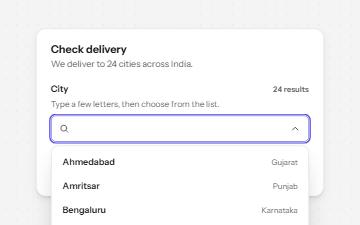
Combobox with autocomplete
A text field that filters a list of suggestions as you type, with arrow keys to pick one and a live count of matches.
-
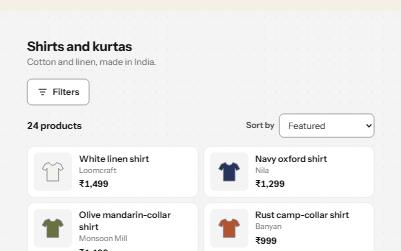
Search filters
A product filter panel: grouped checkboxes with counts, a price range, sort, removable chips and a result count that is announced.
-
Status message
Results, confirmations and saves told to screen readers through role=status, without moving focus, once each time.
-
Empty state
What to show when a list has nothing in it: why it is empty, and the one action that fills it, announced when it changes.